User Settings
Navigation to User Settings
Click on your profile on the lower right-hand side of your screen (toolbar) and select User Settings. Here’s how to do it:
User Settings Options
Here is the list of user settings available to change:
- My Account: Change display name, pronouns, etc
- Linked Accounts: Manage linked accounts
- Calendars: Sync external calendars
App Settings Options
- Voice & Video
- Notifications
- Keybinds
- Appearance
- Performance
- Desktop App
- Advanced
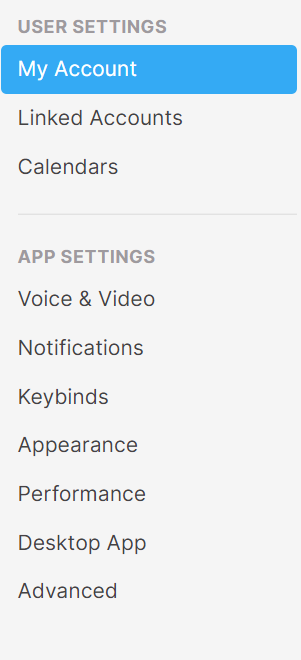
User Settings
- My Account
- Linked Accounts
- Calendars
App Settings
- Voice & Video
- Notifications
- Keybinds
- Appearance
- Performance
- Desktop App
- Advanced
My Account
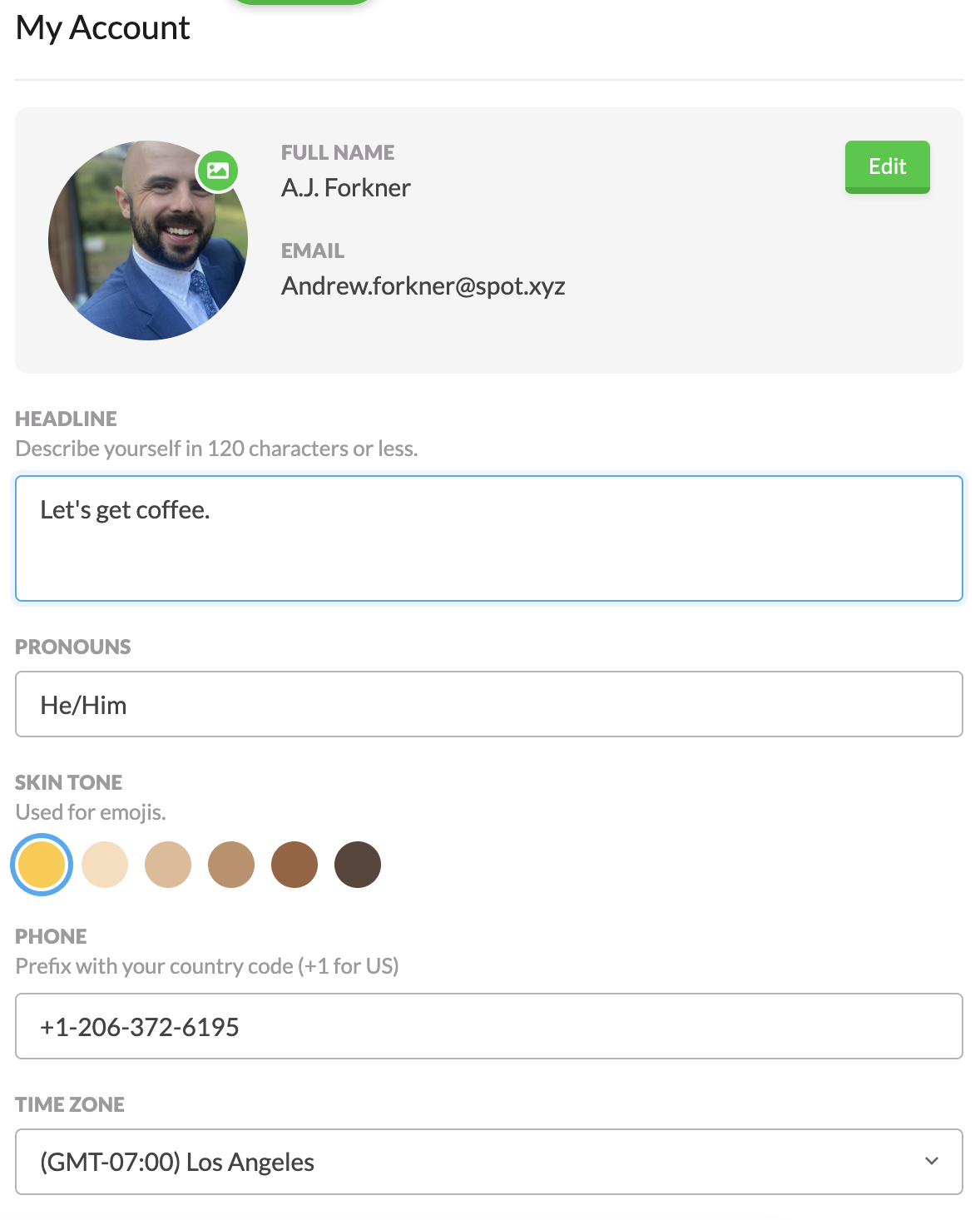
In My Account you can customize:
- Your name
- Your Display name
- Your Profile Picture
- Your Headline
- Your Pronouns
- Your skin tone (for emoji reactions, and more)
- Your Phone number
- Time Zone
Not Pictured:
- Date format
- Clock format (12 or 24 hour)
Linked Accounts
Voice & Video
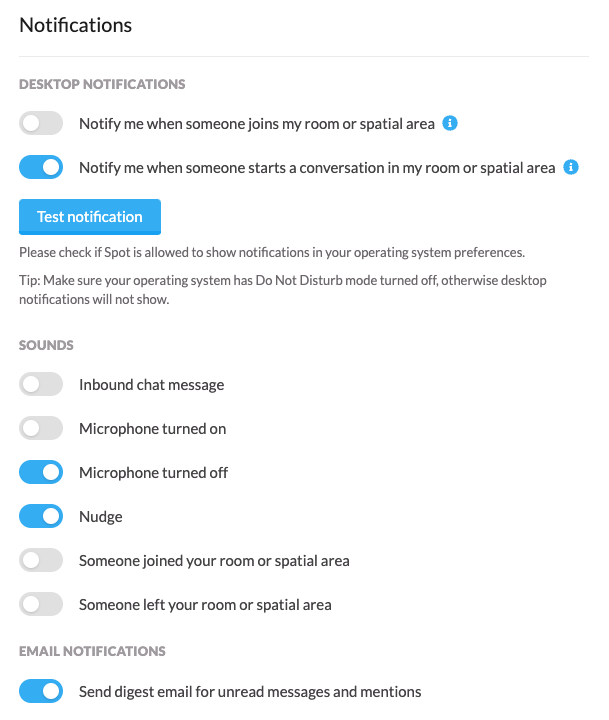
Notifications
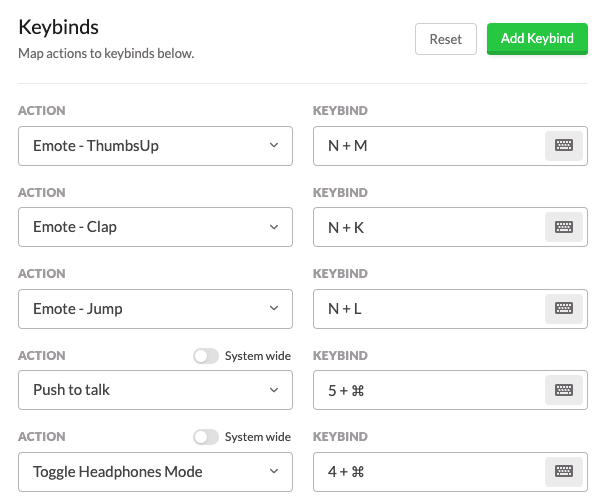
Keybinds
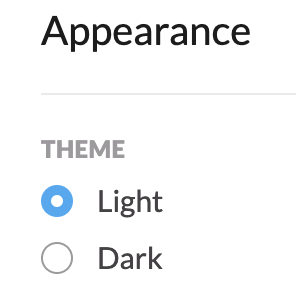
Appearance
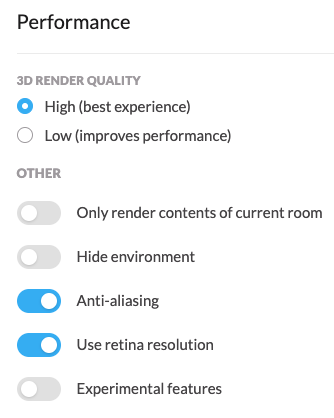
Performance
Performance settings help reduce Spot's workload on your device. If meeting transcription makes Spot slow or causes choppy audio, turn on Disable on-device transcription. Your microphone will continue to work, but this device will stop capturing or scribing transcripts. Turn the setting off when you want this device to transcribe again.
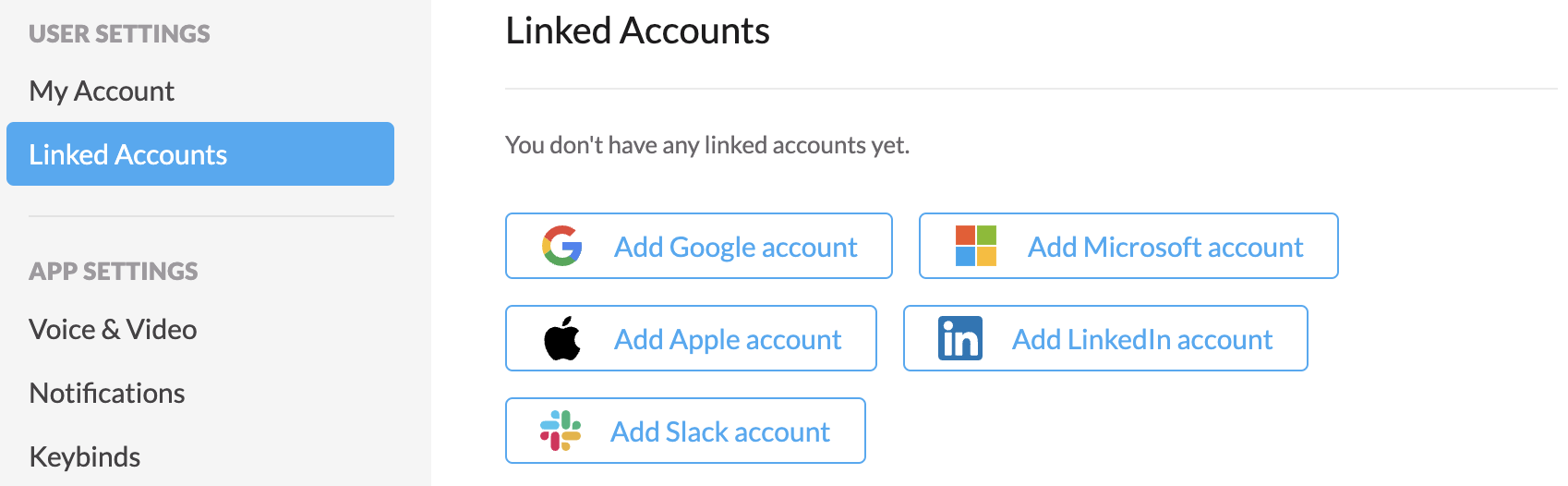
In Linked Accounts you can connect:
- Google account
- Apple account
- Slack account
- Microsoft account
- LinkedIn account
By connecting these accounts, you’ll be able to take advantage of things like an easier login, automated status updates with Microsoft Teams and Slack, and more.
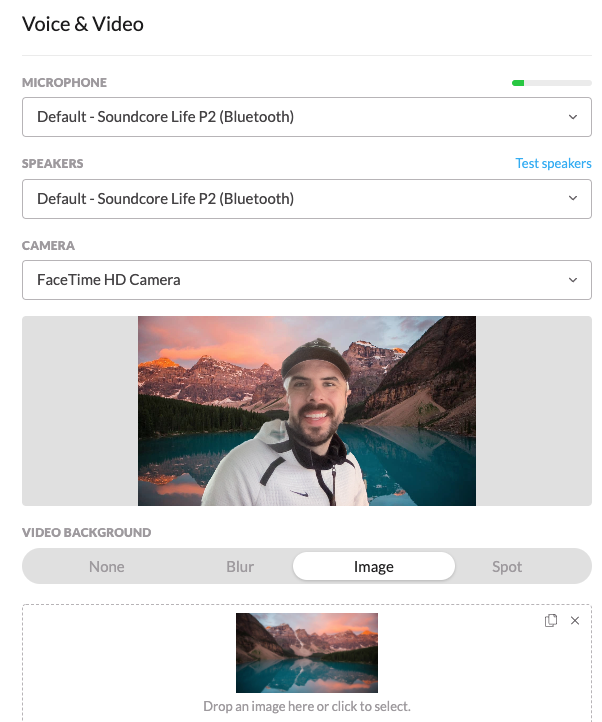
In Voice and Video, you can select your default microphone, speakers, and camera.
You can also choose your virtual background or blur, as well as some advanced settings (not shown)
Notifications allow you to be alerted of a variety of actions in Spot. Just make sure that your computer allows for desktop notifications (or try the Test Notification button)
Notifications include:
Desktop Notifications
- Notify me when someone joins my room or Spatial Area
- Notify me when someone starts a conversations in my room or spatial area
Sounds
- Inbound chat message
- Microphone turned on
- Microphone turned off
- Nudge
- Someone joined your room or spatial area
- Someone left your room or spatial area
Email Notifications
- Send digest email for unread messages and mentions
Keybinds make it easy for you to take quick action. You can:
- Emote
- Toggle your microphone or camera
- Push to talk
- and more!
The toggle for System Wide will allow you to set these actions even when Spot is not your focused window.
Light or dark theme... you choose!
3D Render Quality
By default, Spot will select High. If your device is struggling to load, or you’re having issues, select Low quality.
- Only render contents of current room: will help improve performance if your office has a lot of assets (furniture, etc)
- Hide environment: also helps improve performance.