Searching messages
Find past messages and shared files across channels, room chats, direct messages, and replies. Use filters to narrow the results, then open a conversation at the matching message.
The screenshots in this guide use Northstar Studio, an example team (organization), and synthetic messages. #design-reviews is a channel in that team, not a separate team or space.
Open message search
- From Quick Search: open the magnifying glass or press Cmd + K on Mac or Ctrl + K on Windows. Type your query, then choose Search messages for…. If a channel or conversation matches, you can choose the message-search action for that conversation instead.
- From a conversation: select the magnifying glass in the conversation header, labeled Search this conversation. This starts with that conversation selected, including for a direct message.
- On mobile: tap the search icon in a conversation header, or open your team's search and choose Search messages.
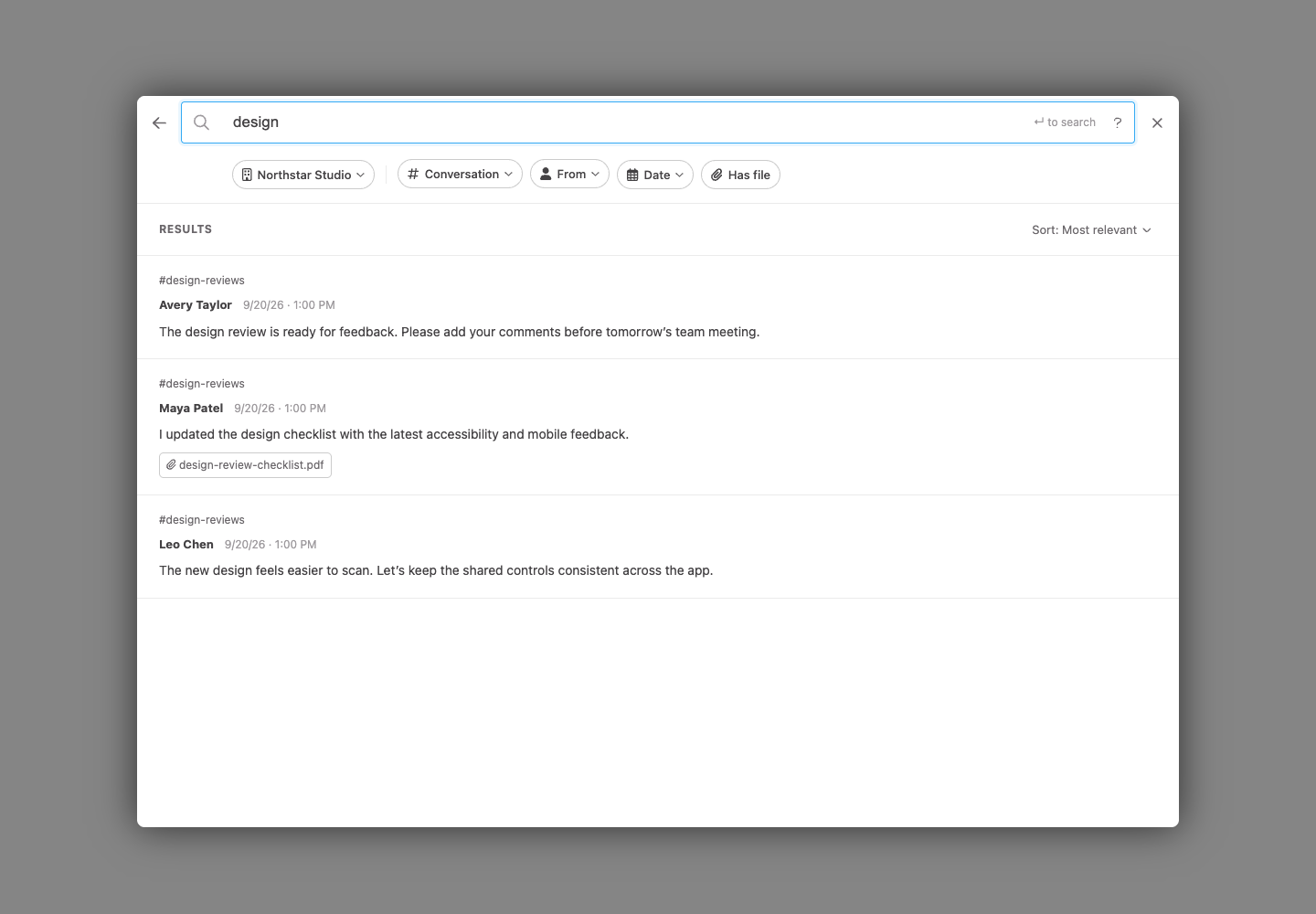
Enter a word or phrase and press Enter or Return on your keyboard. The ? button inside the search field explains phrase and operator syntax. The back arrow returns to Quick Search with your query kept.
Narrow the results
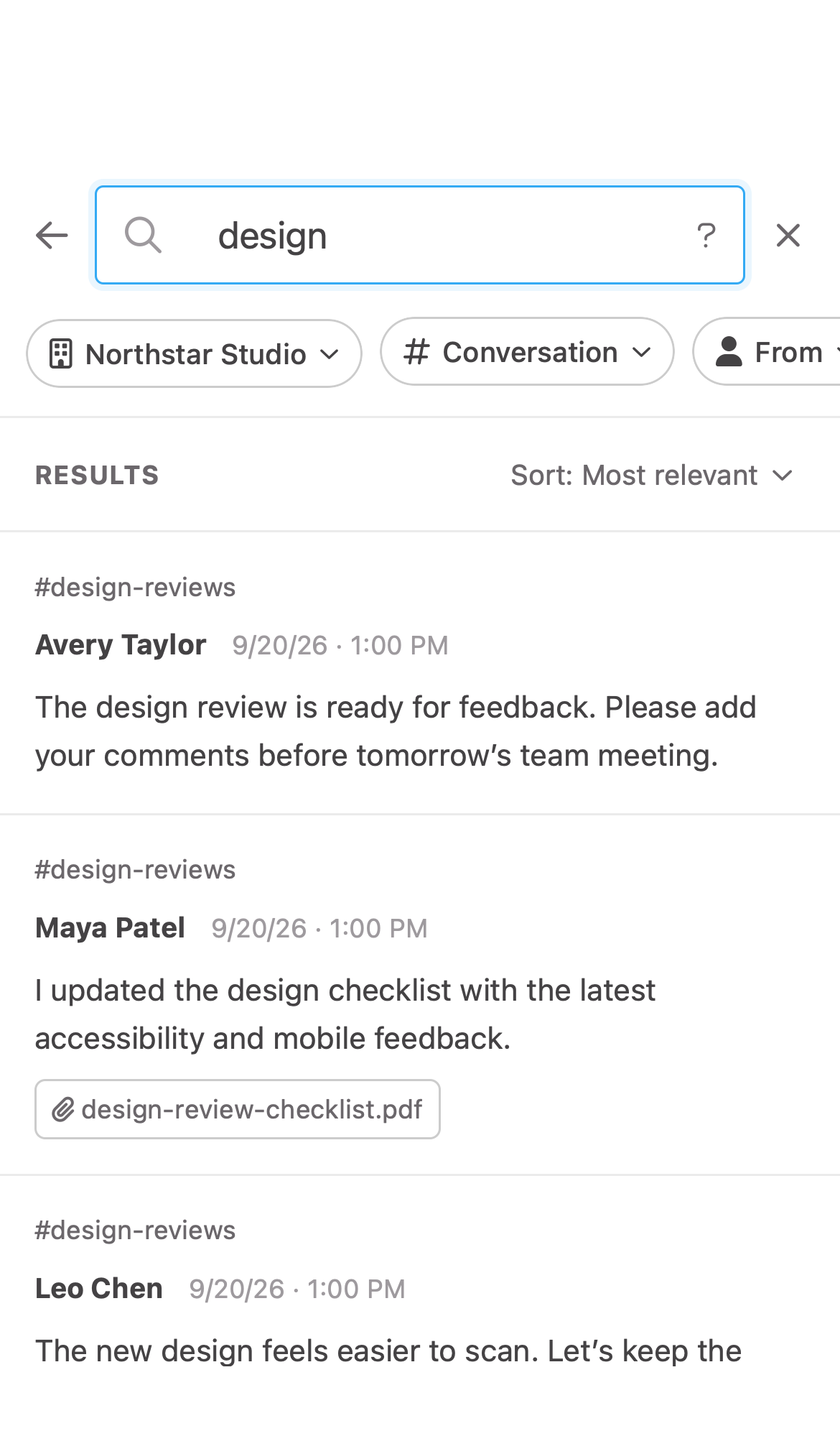
The chips below the search field let you combine filters. On mobile, swipe the row sideways to reach all of them.
- Team scope: the chip showing your team's name selects where to search. Choose Everywhere, including DMs to search across your accessible teams and direct messages. Changing the team clears the conversation and sender filters.
- Conversation: choose a channel or room chat. Type in the menu to find one. To search a direct message, use Search this conversation in its header or its matching message-search action in Quick Search.
- From: choose the person who sent the message. Type in the menu to find them.
- Date: choose Any time, Today, Last 7 days, Last 30 days, or Last 90 days. For a custom range, choose After and Through with the calendar controls. Both selected dates are included, using your local dates. Presets start at the beginning of the selected local day and leave the end open.
- Has file: show only messages with attachments. Searching a filename can help you find the message where it was shared.
For example, search for design, choose #design-reviews, set From to Maya Patel, select Last 30 days, and turn on Has file to find Maya's recent design attachments.
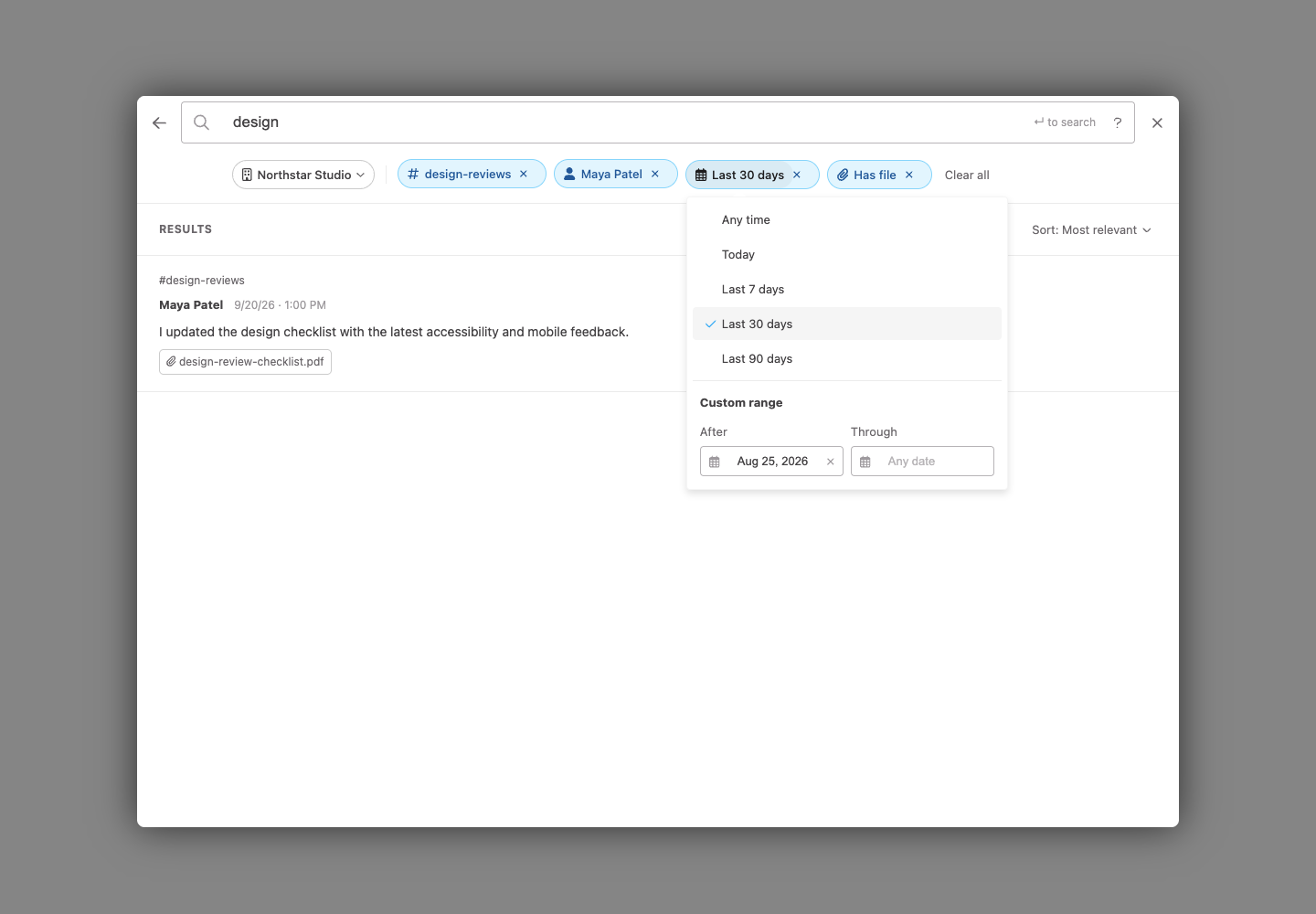
Select the × on an active chip to clear only that filter. Clear all appears when filters are active and clears conversation, sender, dates, and files while keeping the team scope and sort order. To broaden the scope too, choose Everywhere, including DMs from the team chip.
The Sort control beside Results offers Most relevant and Newest first. If a custom end date comes before its start date, correct the error in the Date menu; the last valid results stay visible.
Search tips
- Several words:
project budgetlooks for messages matching both words, without requiring them to be next to each other. - A phrase:
"project budget"keeps the words together and in order. Phrase matching follows word forms, so it is not a character-for-character text comparison. - Either word:
budget OR forecastfinds messages matching either term. Use uppercaseOR. - Exclude a word:
budget -forecastlooks for budget messages without forecast. - Filenames: try
design-review-checklist.pdfor a word from the filename. Search covers attachment names, not the contents of uploaded files.
Search recognizes common English word forms, such as run and running. Other languages can be searched, but do not receive the same English word-form matching.
When a single-word search has no matches, Spot can try words that start with your search and then similar spellings. The results tell you when this happens. Quoted phrases and searches using operators such as OR or - do not switch to similar spellings.
Read a result in context
Select a result to open a conversation preview at the matching message. On desktop, the preview appears beside the results. On mobile, it takes the place of the result list.
Use Back to results to return to the list, or Open conversation to continue in the conversation itself. On a keyboard, Esc closes the preview first; press it again to close search. Your results stay available while you move between the list and its preview.
Select Load more messages at the bottom when another page is available.
Search on mobile
Swipe the filter chips sideways to reach Date and Has file. Tap a chip to change it, or its × to remove it. Sorting stays beside the Results heading. In a preview, use the back arrow to return to your results.
If you cannot find a message
When no results match active filters, use the suggested actions to remove just the date, file, sender, or conversation filter, or choose Clear all filters. With no filters active, you can choose Search everywhere, including DMs to broaden a team-scoped search.
Try fewer words, check your spelling and dates, or remove quotation marks. If a broad search cannot finish, narrow it to a conversation or a shorter date range and try again.
Results only include conversations and message history you have permission to read. Searching does not grant access to a private conversation. File contents and text inside images are not searched; try the filename or words from the accompanying message instead.
For finding people, spaces, and rooms, see Quick Search.