Microphone & Camera Permissions in Chrome
If you’re accessing via the browser (versus with the Desktop App) - it’s important to ensure you have given Spot permission to use your Microphone. Here’s a couple different ways to check that it’s enabled.
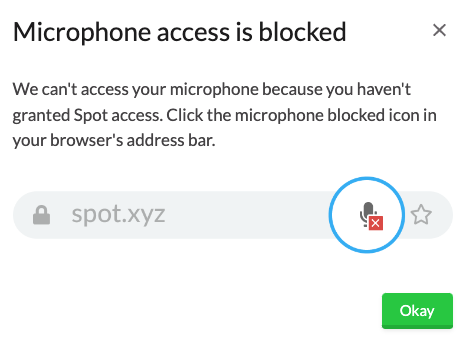
If you come across this image - don’t worry, I got you covered!
To allow Spot access to your microphone in Chrome
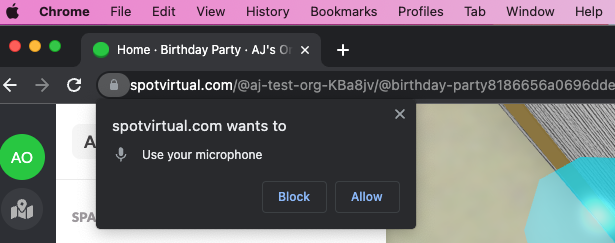
The first time you go to enable your microphone, make sure you click Allow.
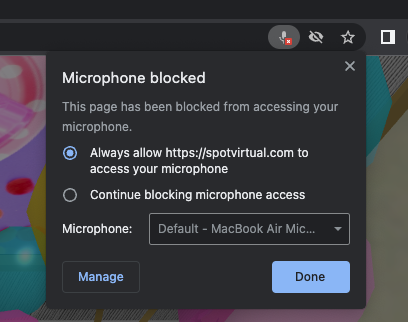
You can also look on the right hand side on your address bar for the microphone icon, and click Always Allow, then Done.
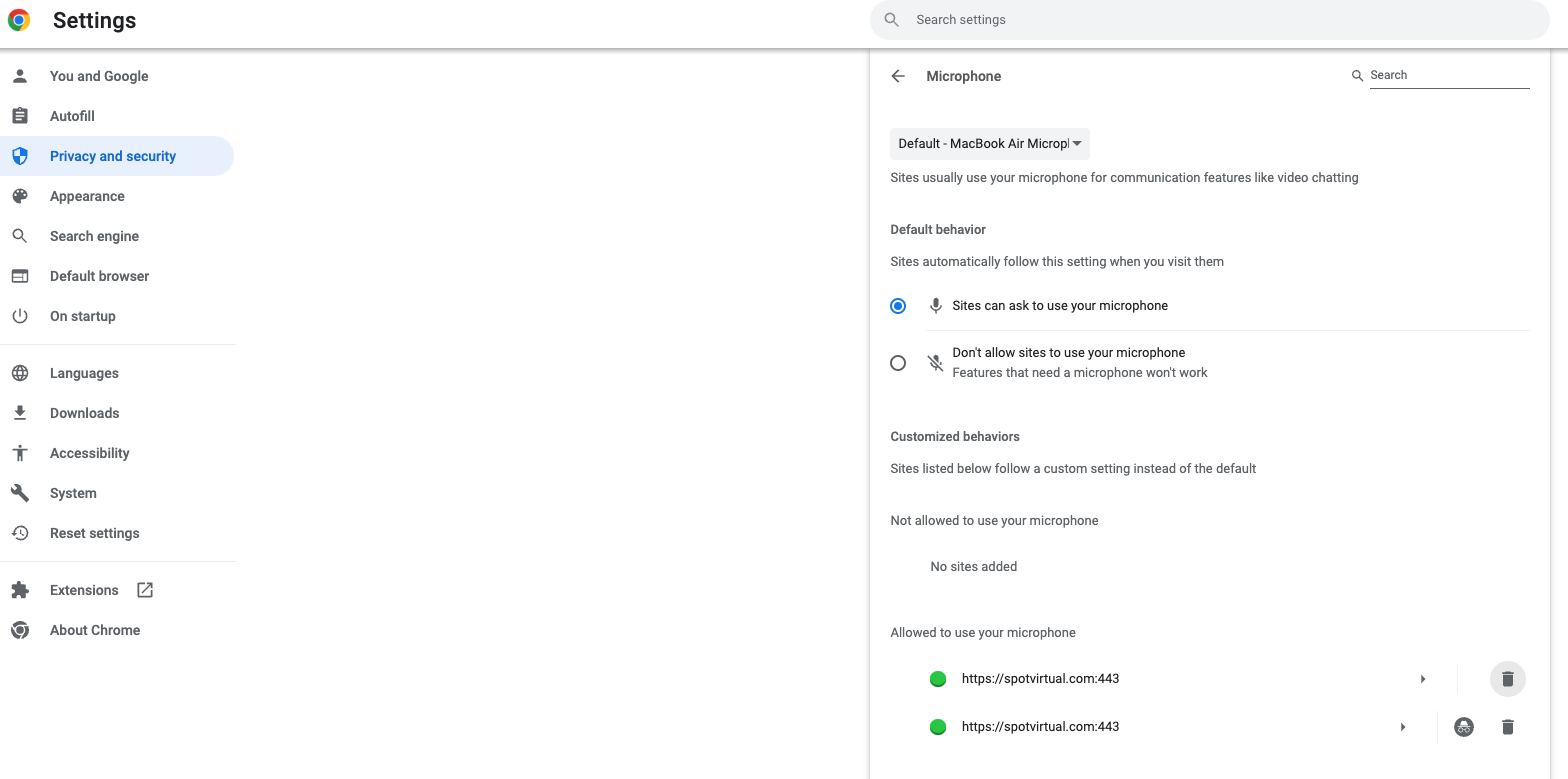
You can also go to Chrome → Settings → Privacy and security → Site Settings → Microphone and allow Spot access there.
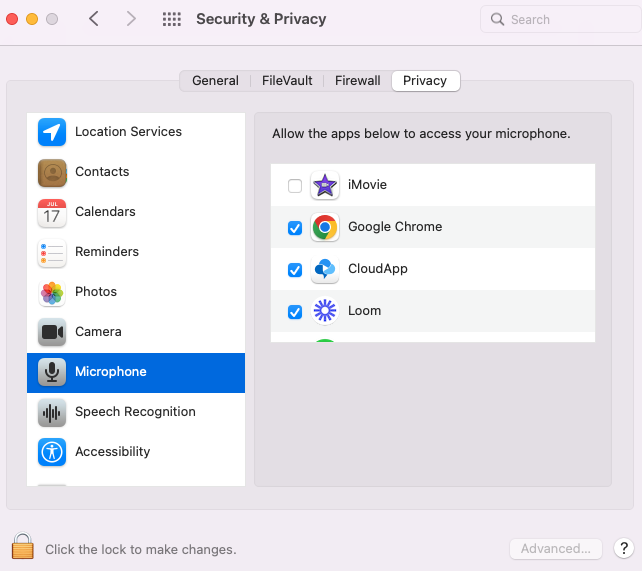
If this still doesn’t fix the problem, try navigating to your computers System Preferences → Security & Privacy → Microphone and ensure that Google Chrome is selected!
If the Spot app is not in the list then use the + button and manually select the Spot app.
If you have any more questions, or any trouble with your microphone, drop us a note! support@spotvirtual.com