Resetting the desktop app
💬 If you need assistance performing the steps below, please contact us at support@spotvirtual.com.
If your Spot desktop app is experiencing problems then this article will help you clear things up and get back into your office.
The first thing you should try is to reset the application to factory settings. To do this you must start the application and then use the menu to navigate to Actions → Advanced → Reset to Factory Settings.
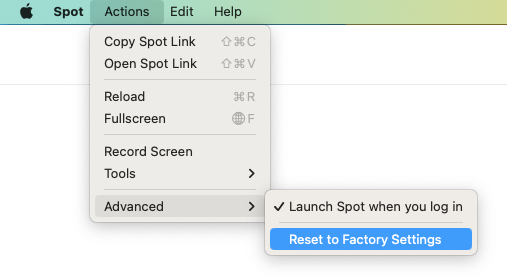
Clicking this will open a prompt that explains what will happen and it will ask for your confirmation before continuing.
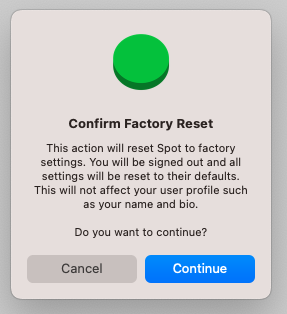
If you want to continue, click Continue. The application will restart and you should see the Spot login screen.
If this didn’t work for some reason, or if you are simply unable to even start Spot, then you may have to manually reset the application as described below.
Manually resetting the desktop app (macOS)
To manually reset the desktop app on macOS you first need to locate the directory that contains the data files. Before you get started, make sure that the Spot app is completely exited.
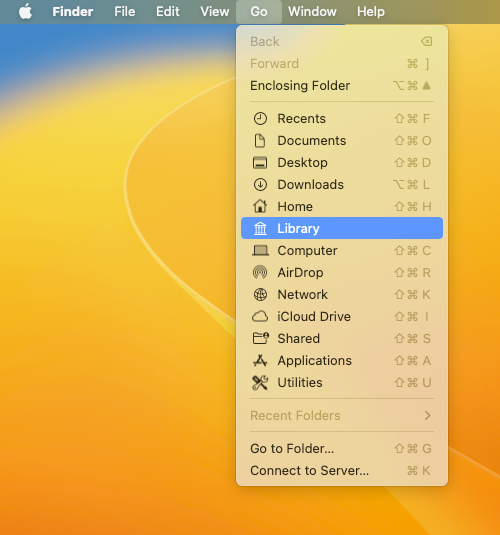
Start by opening Finder and then using the menu option Go → Library. You must hold down the ⌥ Option key for the Library menu item to become visible.
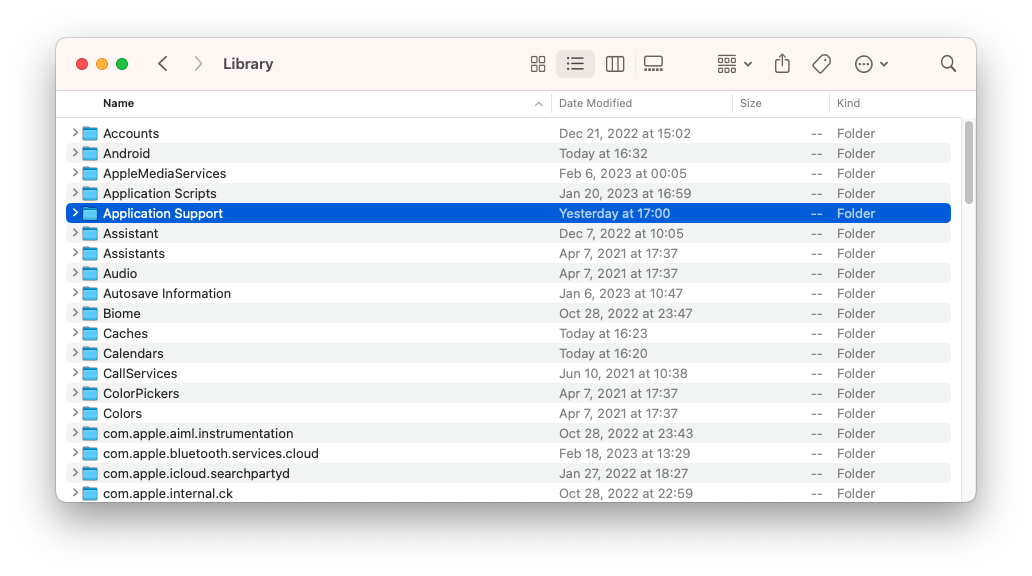
Once you’ve opened the Library directory you should see something like shown below. Find the directory named Application Support and enter it.
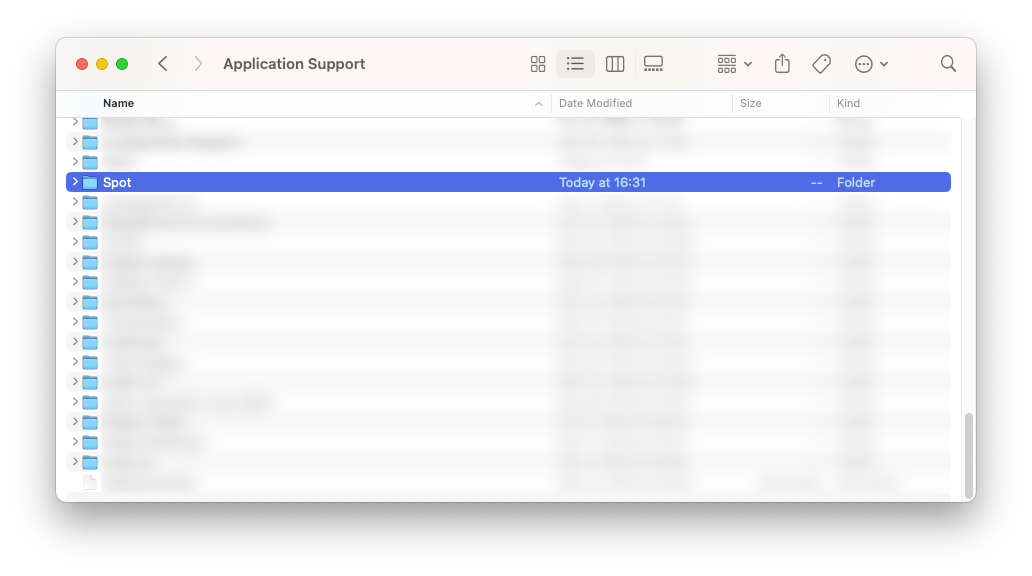
Once inside the Application Support directory, locate the Spot directory. You will see that other applications also store their data files in this directory. Be careful so that you don’t accidentally modify them.
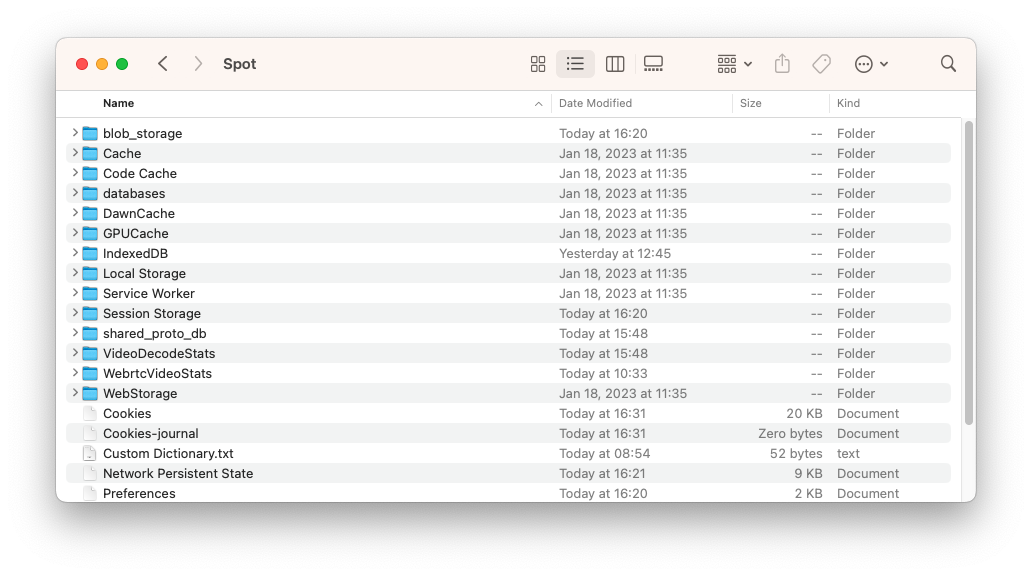
Optional: If you take a look inside the Spot directory then you will see these files:
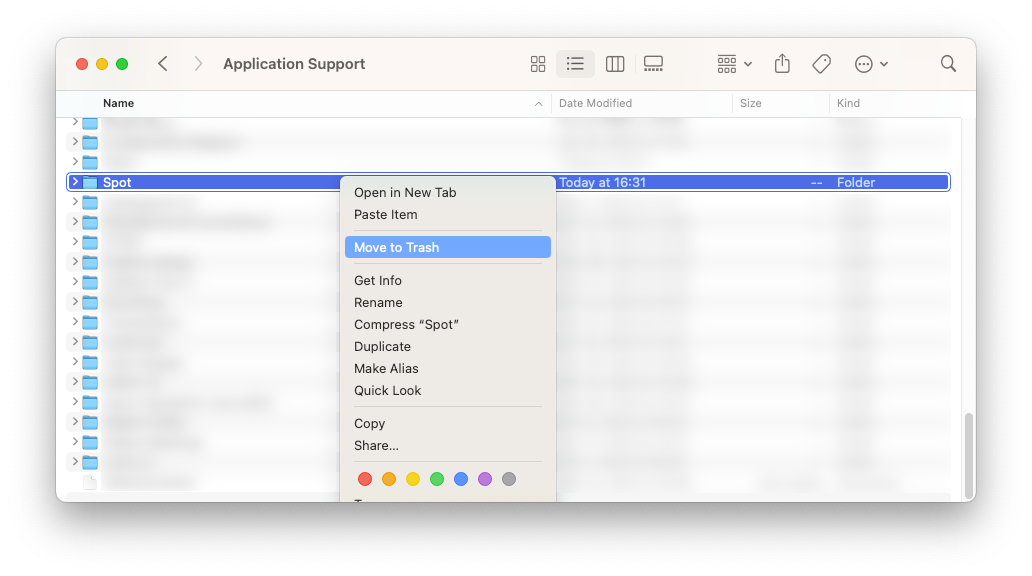
Go back up one level and delete the whole Spot directory:
That should have reset Spot. When you launch the application it should now show you the login screen.
Manually resetting the desktop app (Windows)
To manually reset the desktop app on Windows you first need to locate the directory that contains the data files. Before you get started, make sure that the Spot app is completely exited. Check the system tray in the bottom right corner and check that there isn’t a Spot icon there. If there is, right click it and click Quit.
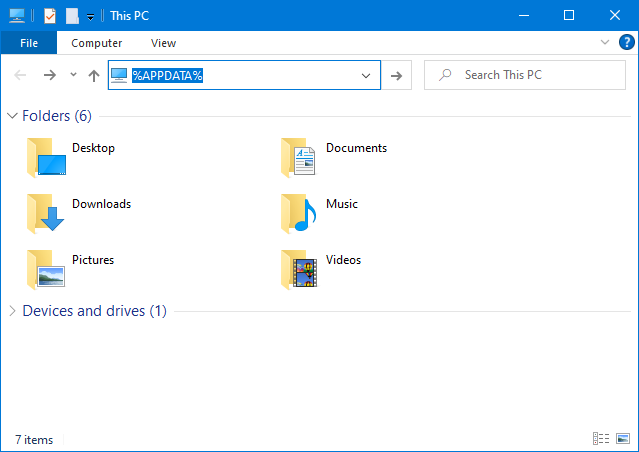
Start by opening a File Explorer window. Click the address field in the top and write the text %APPDATA% and press the Enter key. This will navigate to the directory where Spot stores its settings and data files.
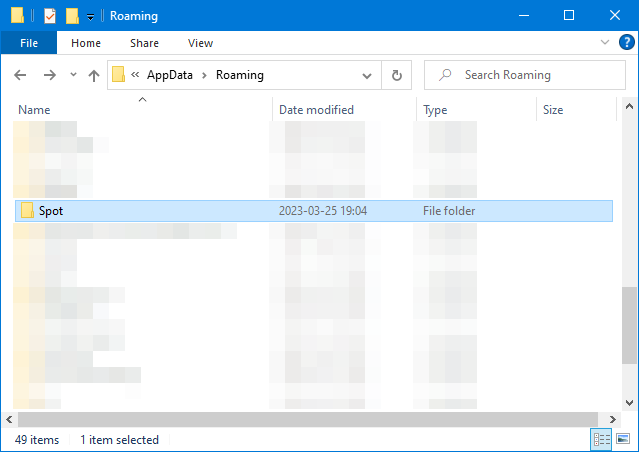
Once you’ve opened %APPDATA%, you will end up in a directory called Roaming. Locate the Spot directory. Other applications also store their data files in this directory. Be careful so that you don’t accidentally modify them.
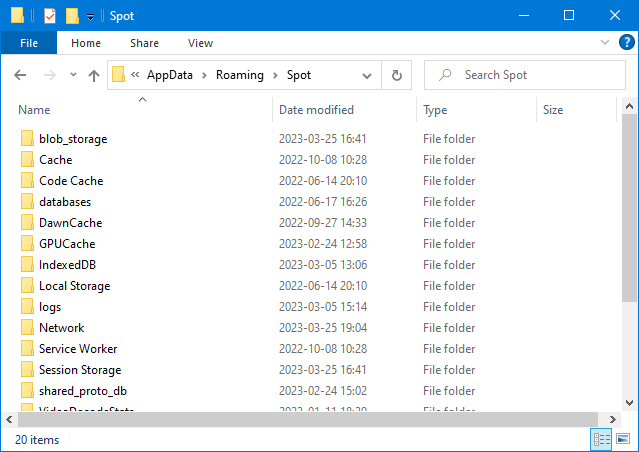
Optional: If you take a look inside the Spot directory then you will see these files:
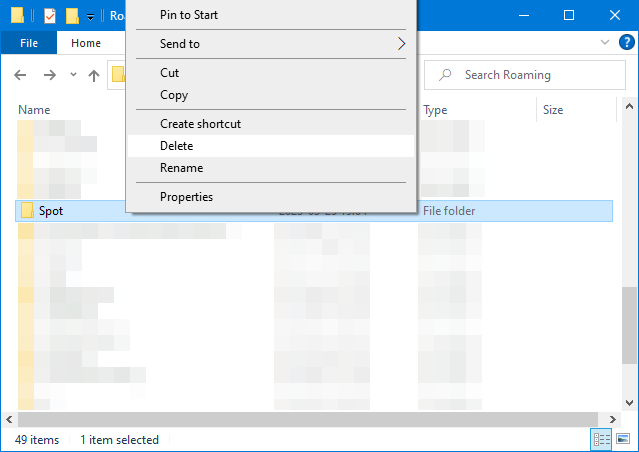
Go back up one level and delete the whole Spot directory:
That should have reset Spot. When you launch the application it should now show you the login screen.