Toolbar, explained
Either across the top, or down the right hand side of your screen - here’s everything you need to know about the toolbar

Left Corner of the bottom Toolbar

Your company logo (or company initials)
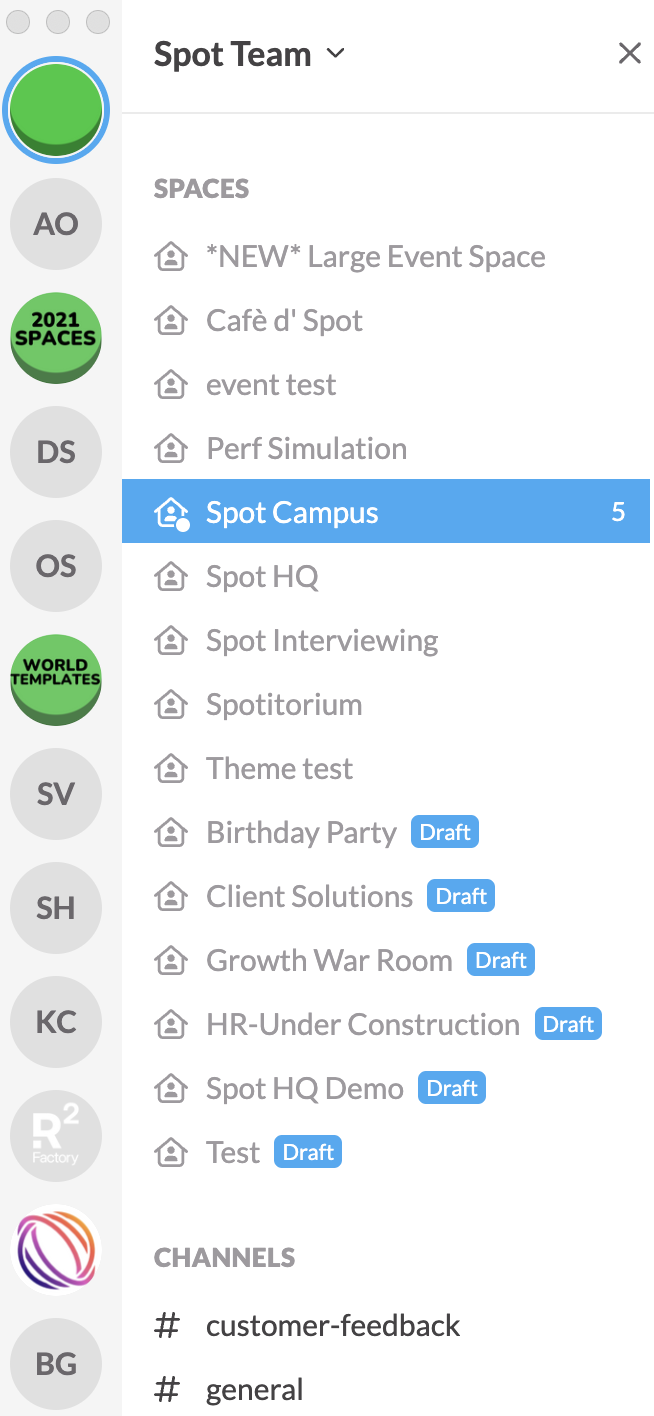
Clicking the far left icon in your toolbar will allow you to:
- Navigate in between Worlds that you’re a member of
- Navigate in between Spaces of the world you’re currently in
- Access public messaging Channels
- See members
and more!
The name of your Active World/Space
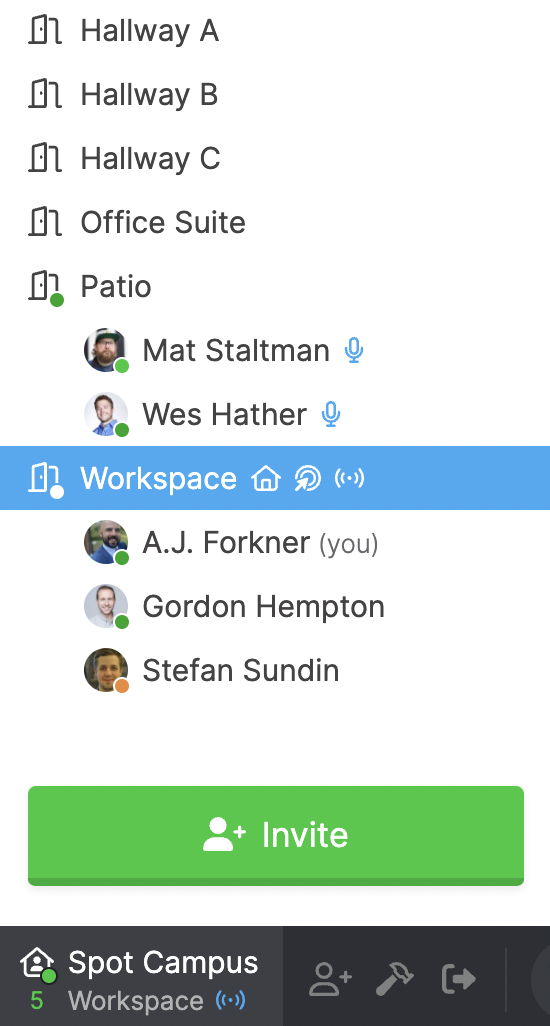
Next to your company initials/logo, you’ll see the name of the active world/space you’re in.
- You can navigate quickly in between rooms by clicking on the name of a different room.
- You’ll see where your teammates are throughout your office (in addition to whether they have their mic, webcam, or screenshare active)
- Identify where your home space is, and whether or not Spatial Audio is enabled for that space.
Left Hand Side of the Toolbar

Invites
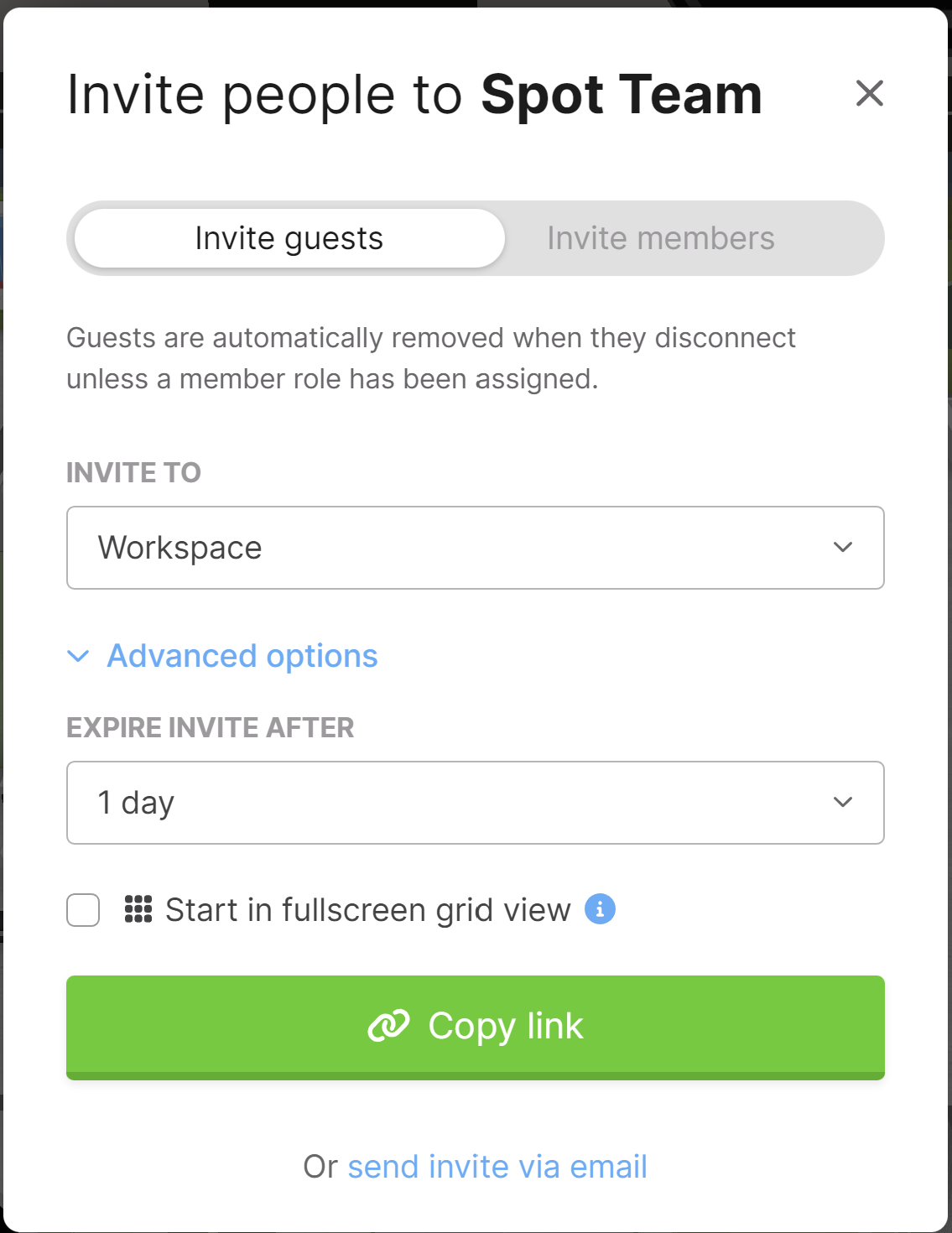
- Select invite to bring guests, members, or admins into your Team.
- Select the room you are inviting them to.
- Choose when your invite link expires.
Build mode
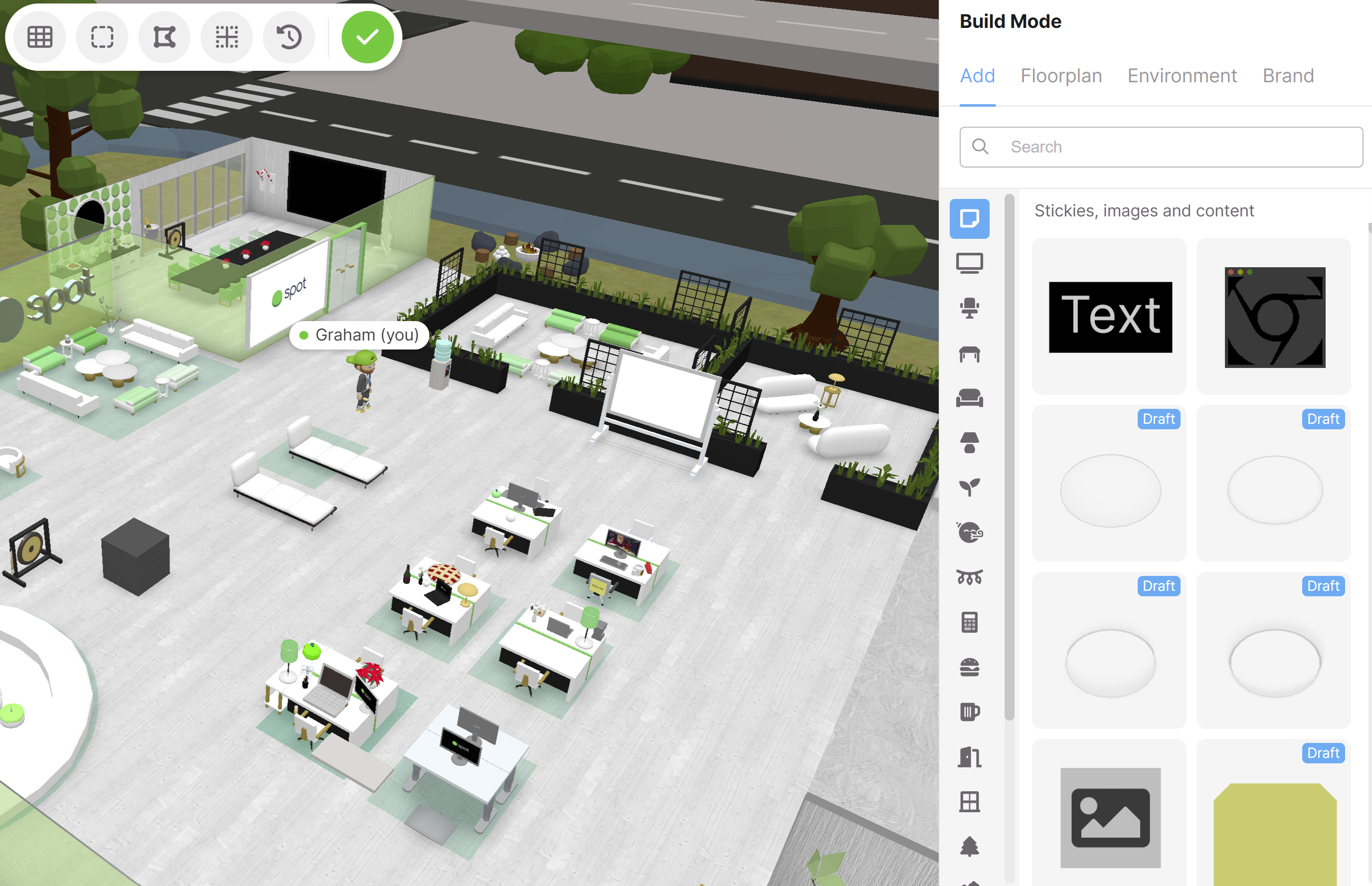
More information on design can be found under this designing page.
Leave Team
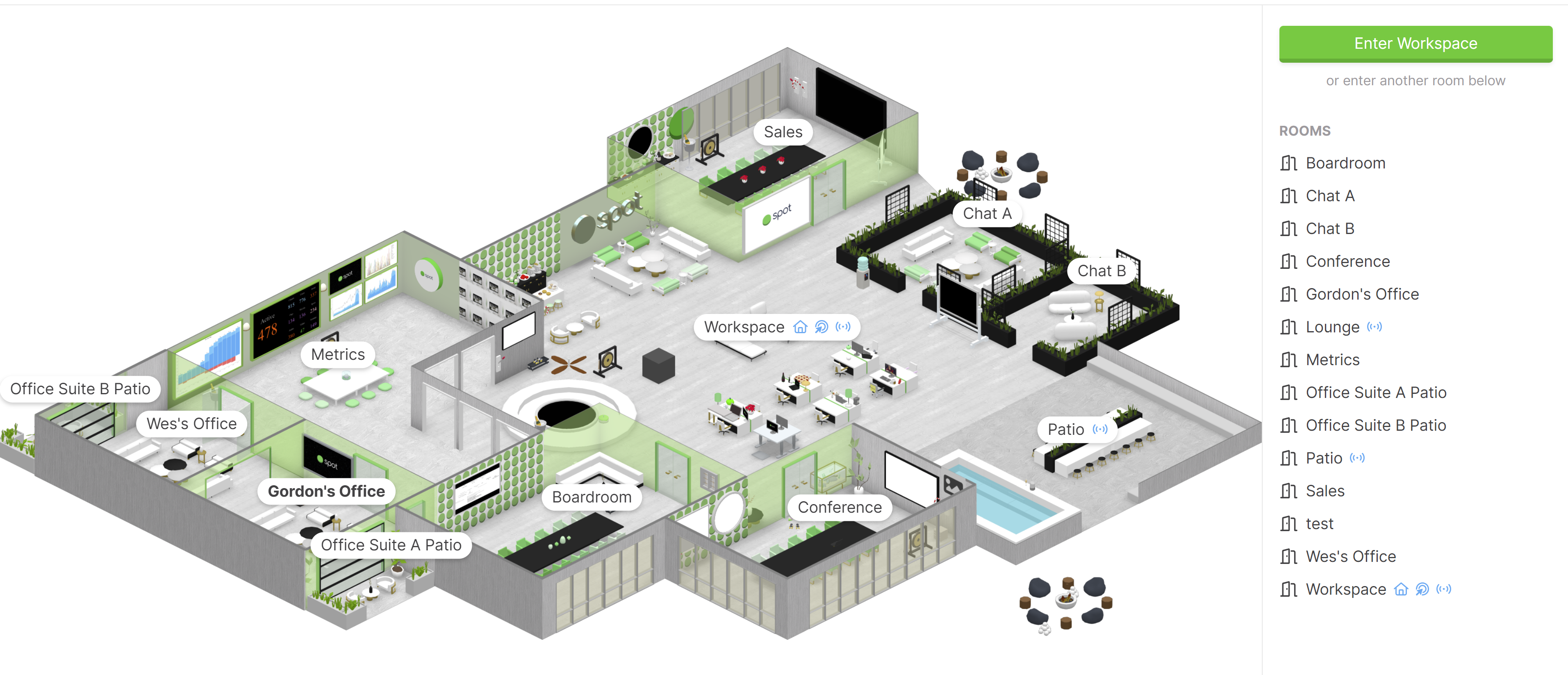
When you leave your team you have a top-down view of the space and can still interact with chat and messaging with your team.
Microphone Control 🎤
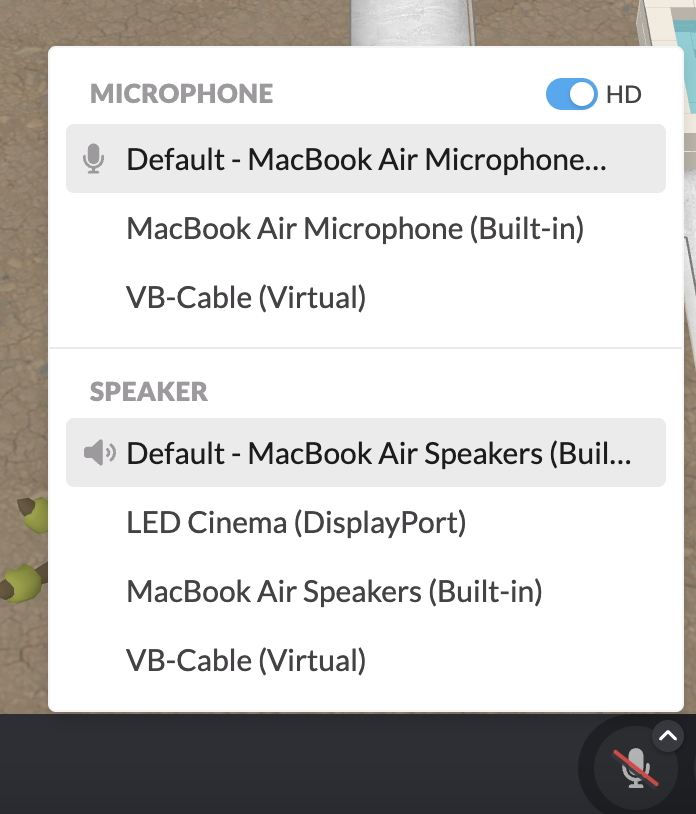
This one’s easy - it’s how you enable/disable your microphone. As you hover over the Microphone icon, you’ll also see a drop down to select your device.
Camera Control 📷
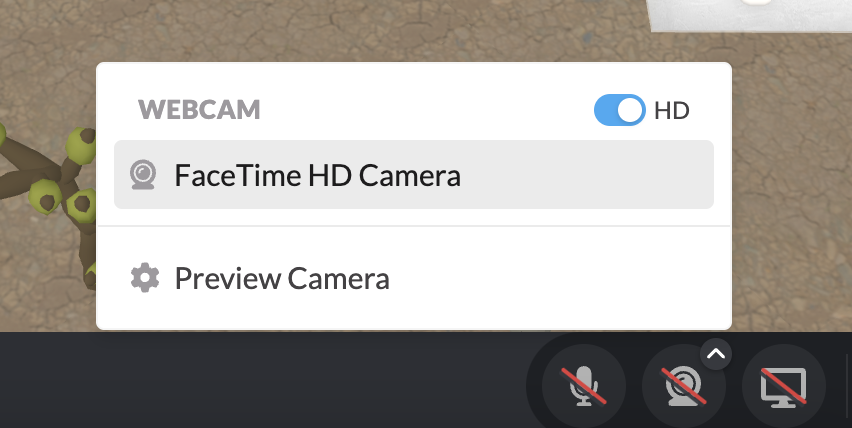
Just like the microphone, this is where you can select/enable/disable your camera. You can also select your virtual background from here!
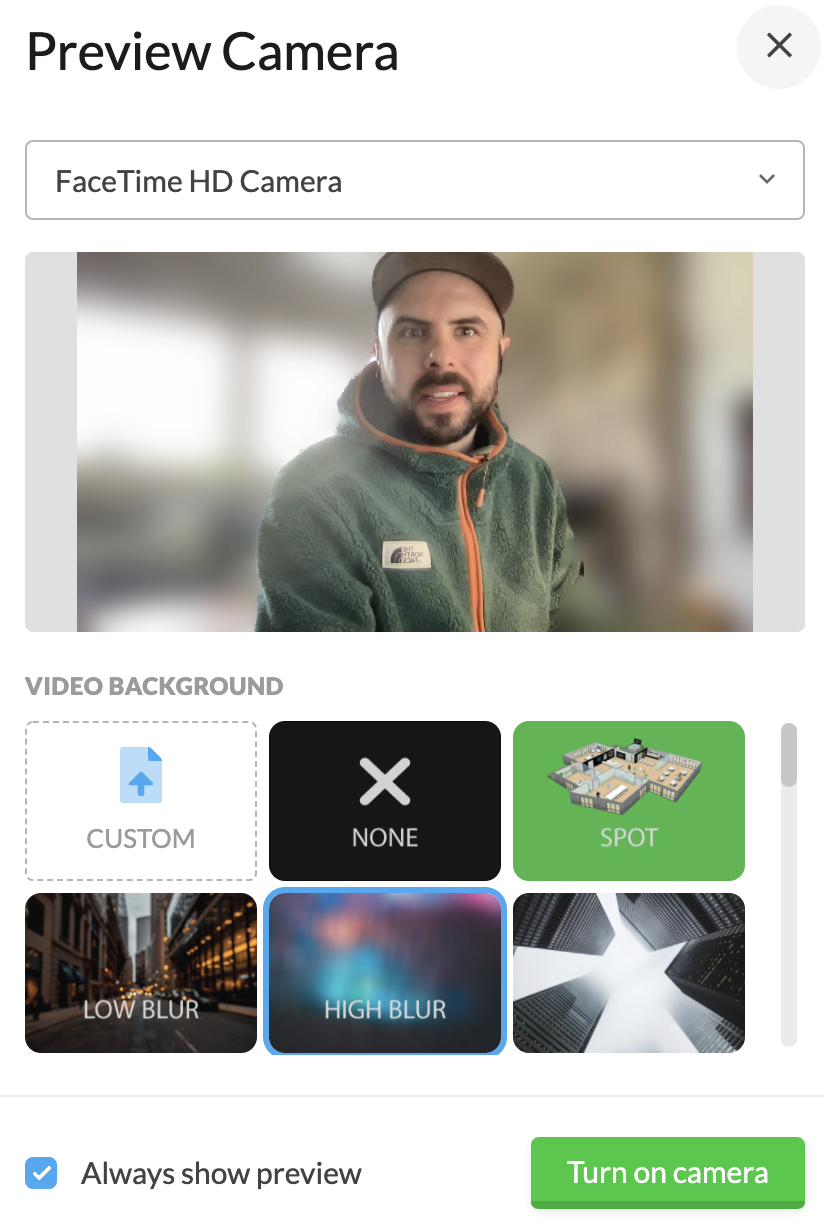
Oh, hi there, it’s me, A.J.!
When you pick your background, you can:
- Use a screenshot of your Spot office (don’t worry, we’ll take the picture!)
- Choose between Low Blur or High Blur
- Choose from one of our carefully curated images in the library
- Upload your own!
Send me an email and tell me a joke if you see this!!
Screen Share 🖥️
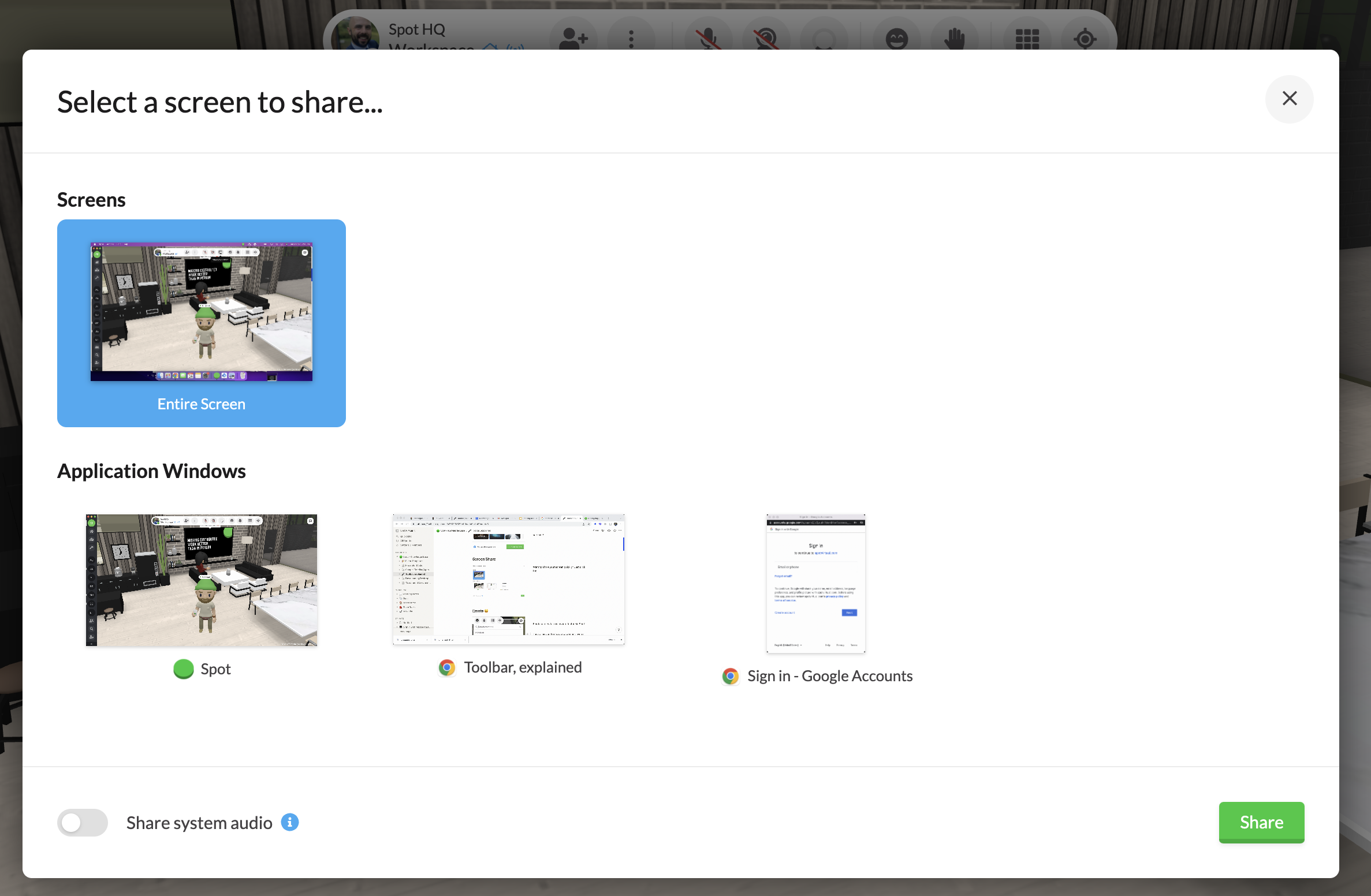
Want to share your screen quickly? Just click the Screen Share 🖥️ icon
You’ll then be prompted to select the screen, window, or tab (if you’re in Chrome) you’d like to share.
When you start screen sharing, your guests will see your screen in the lower right corner of their screen. Just ask them to click it, and they’ll see it in full screen!
Cursor Share
Let your team follow along while you share where your mouse cursor is on the screen.
Emote 😃
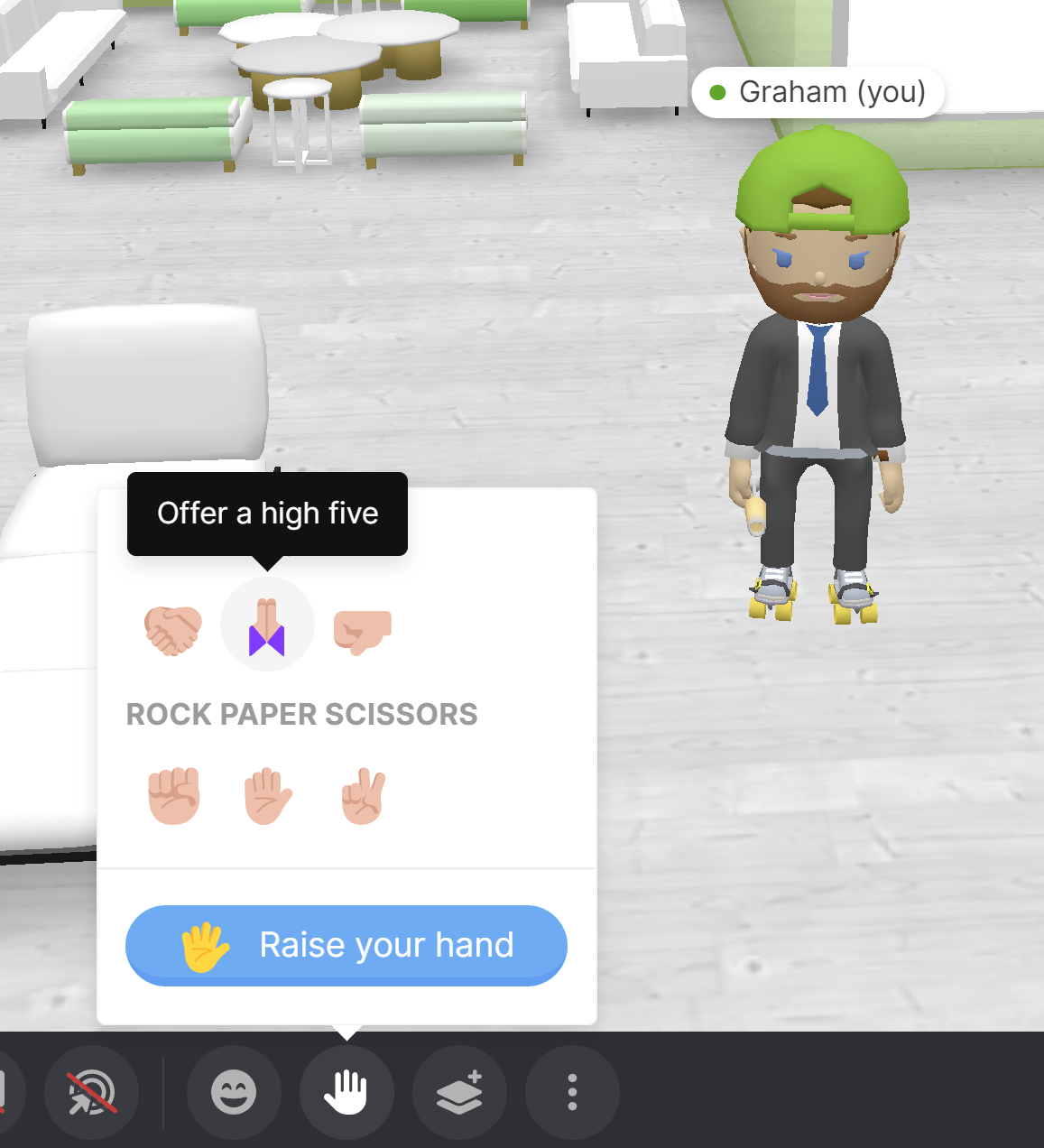
Raise Hand - and Actions ✋
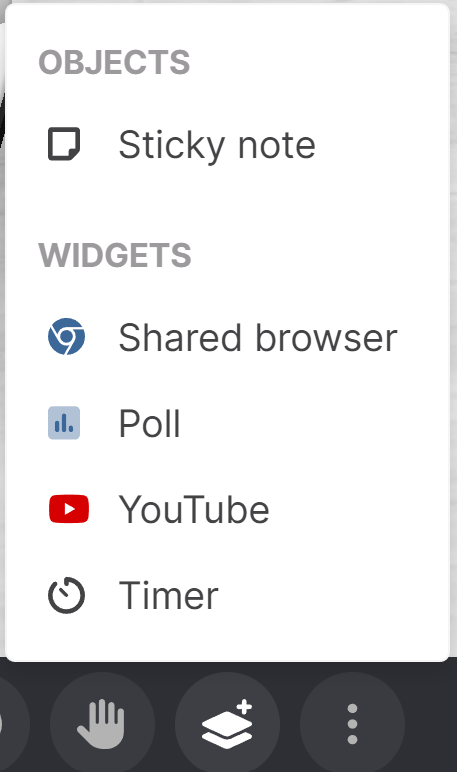
Add Items
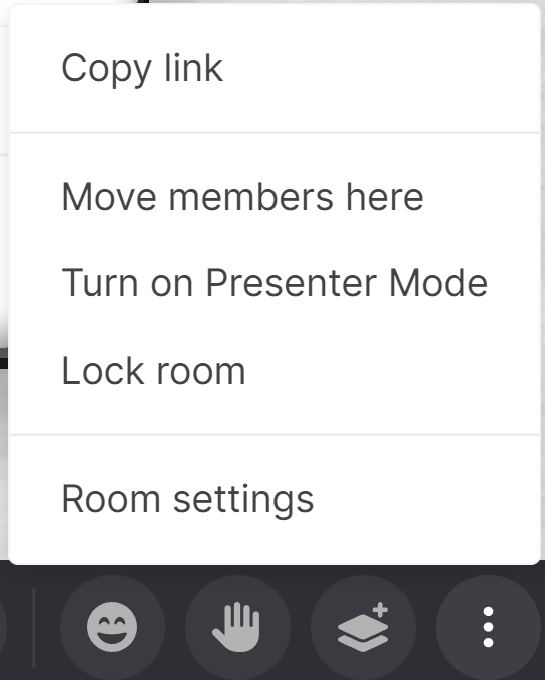
More Actions
Right hand side toolbar

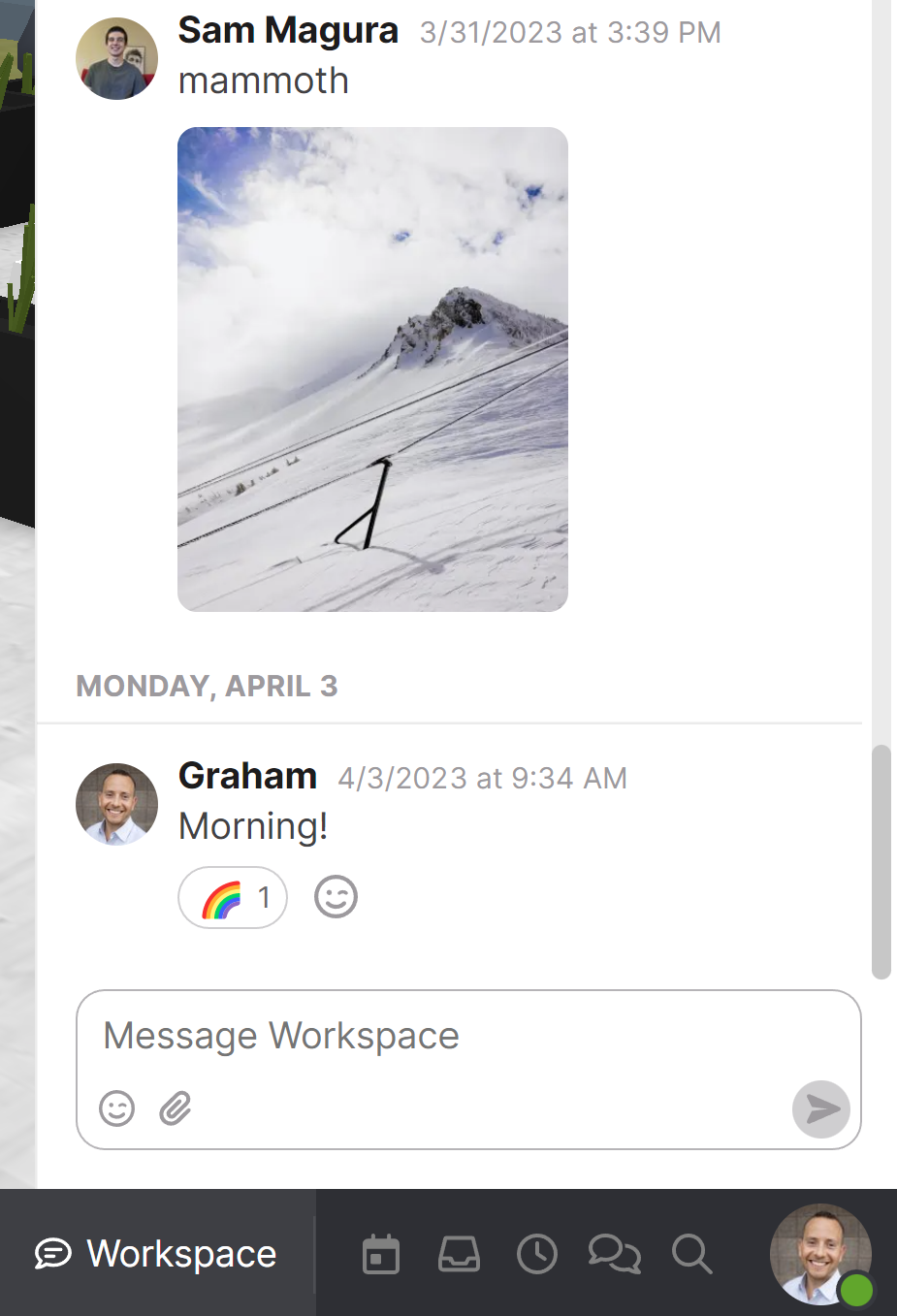
Room Chat
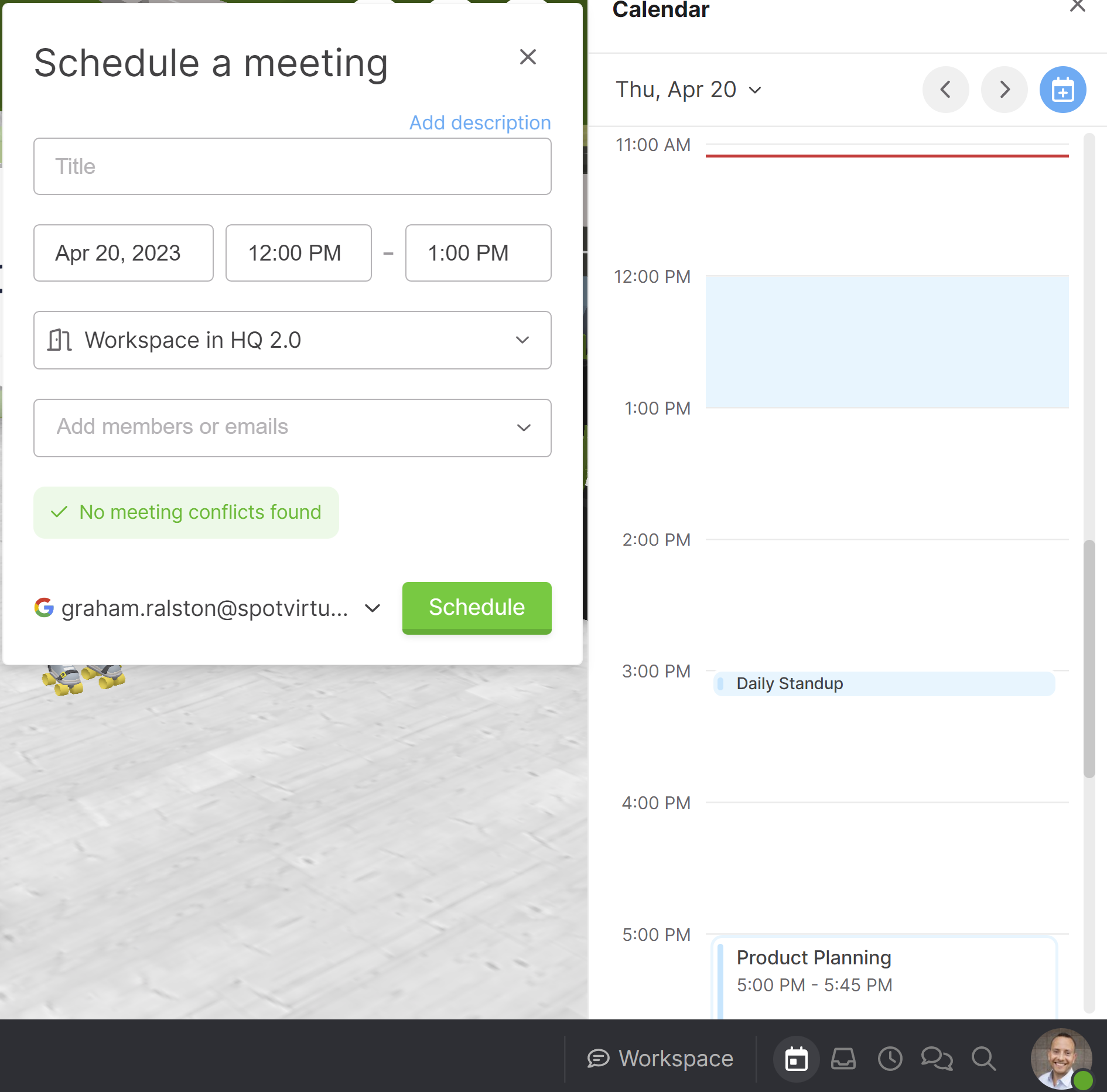
Calendar
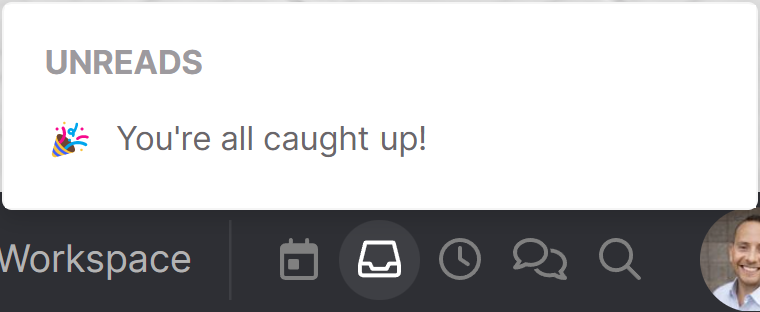
Unreads
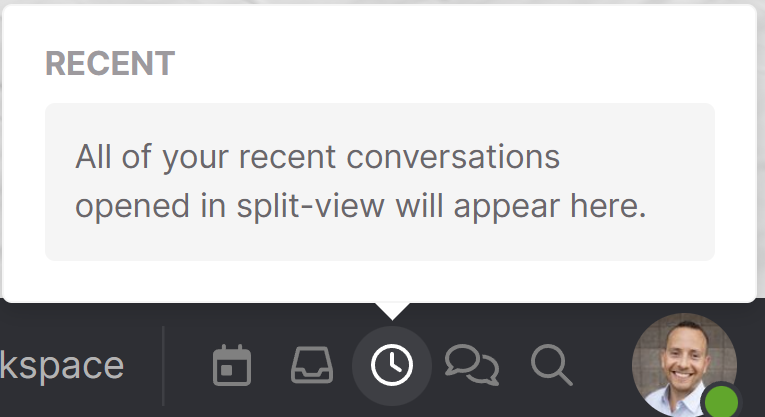
Recent
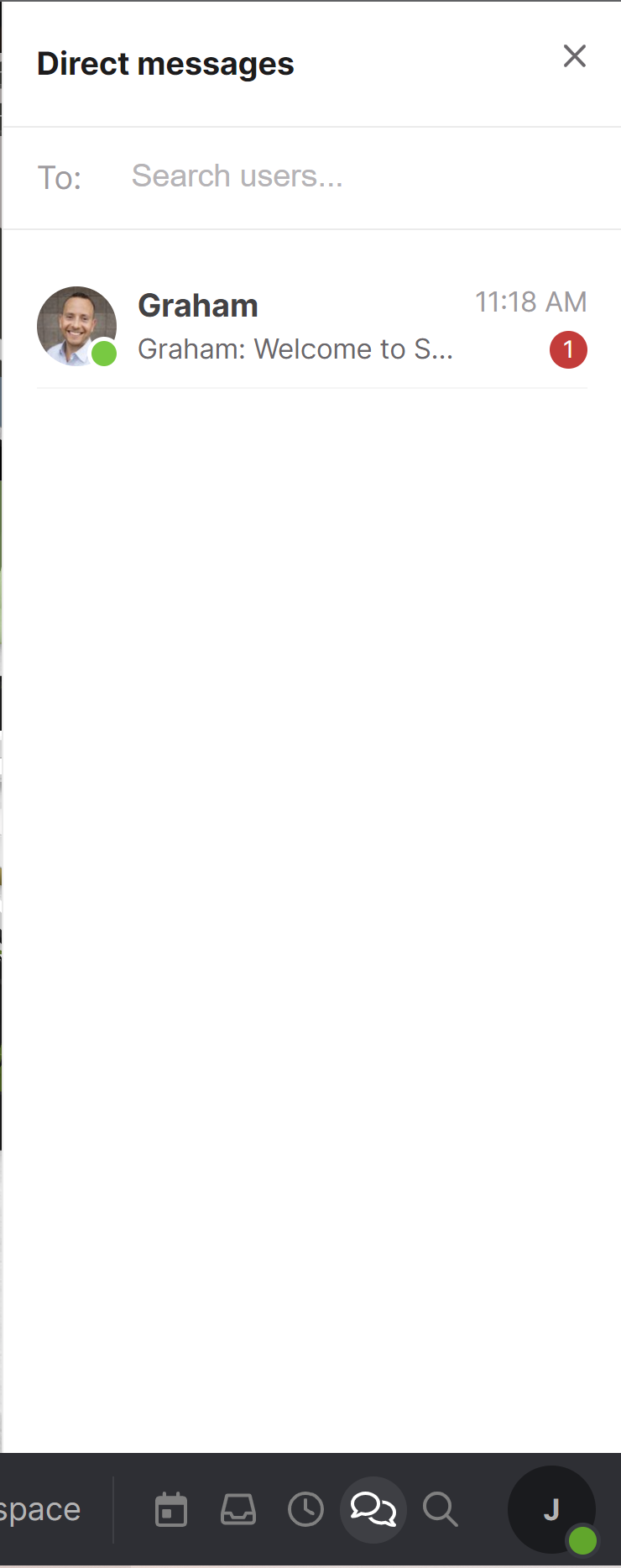
Direct Messages
Magnifying Glass/Message Icon
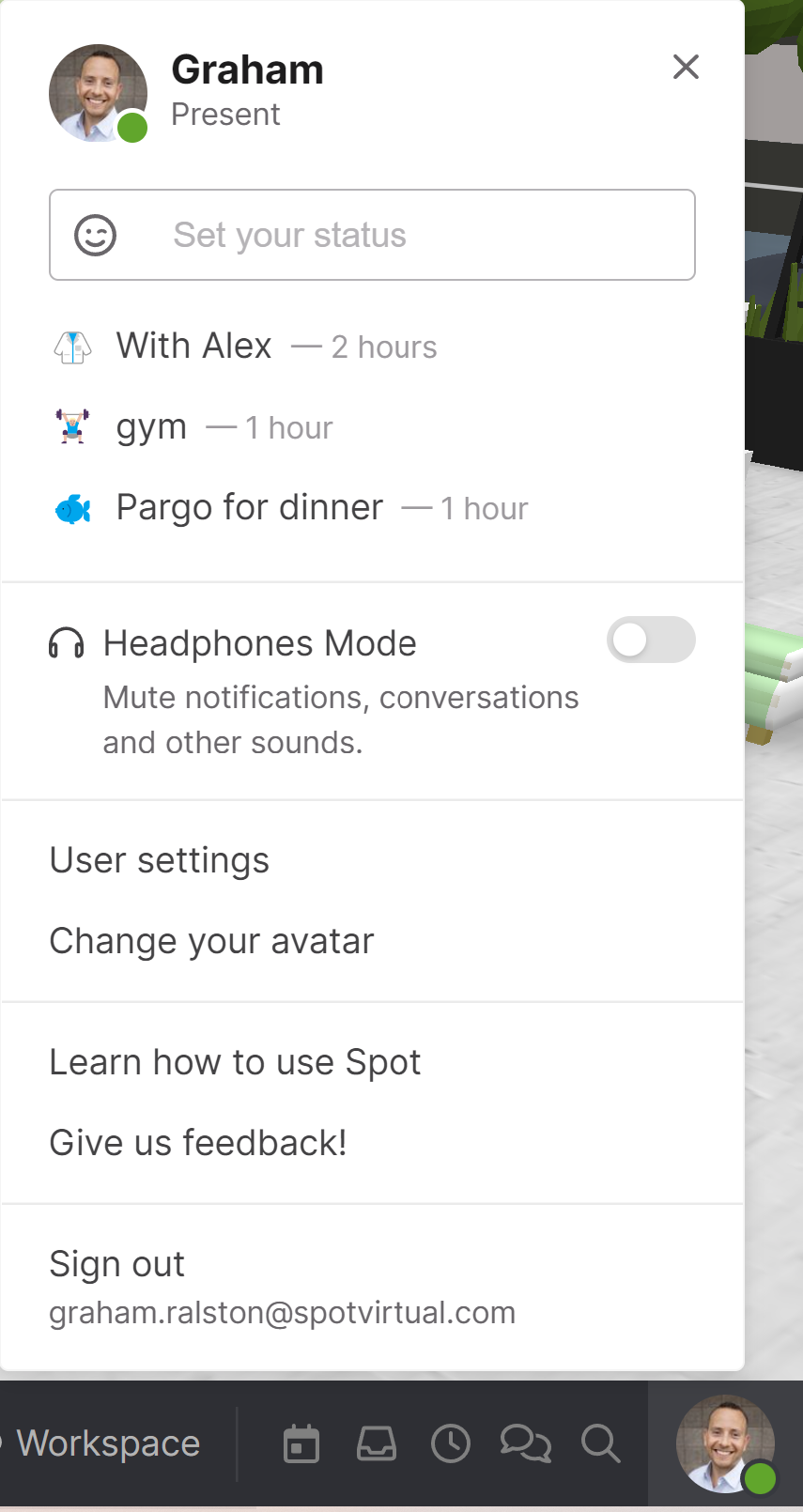
User Settings
Upper Right
Grid View
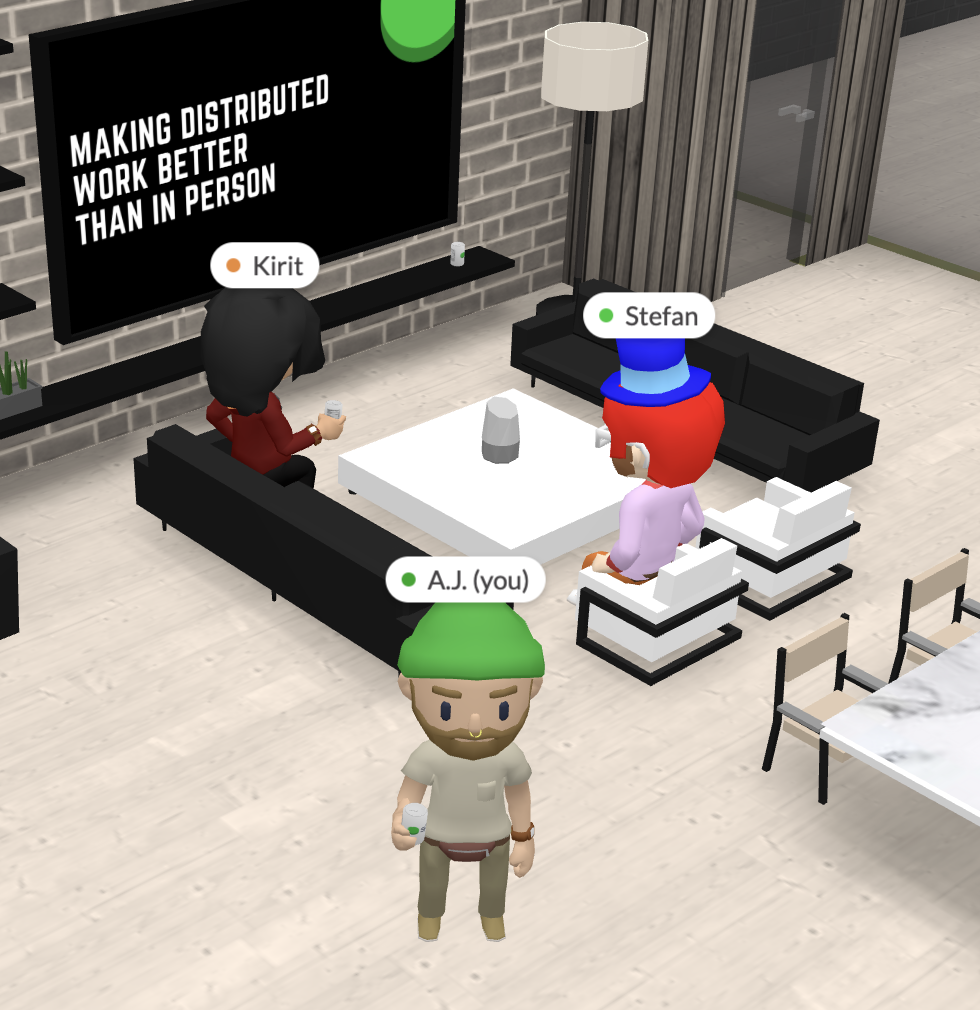
Top-Down View
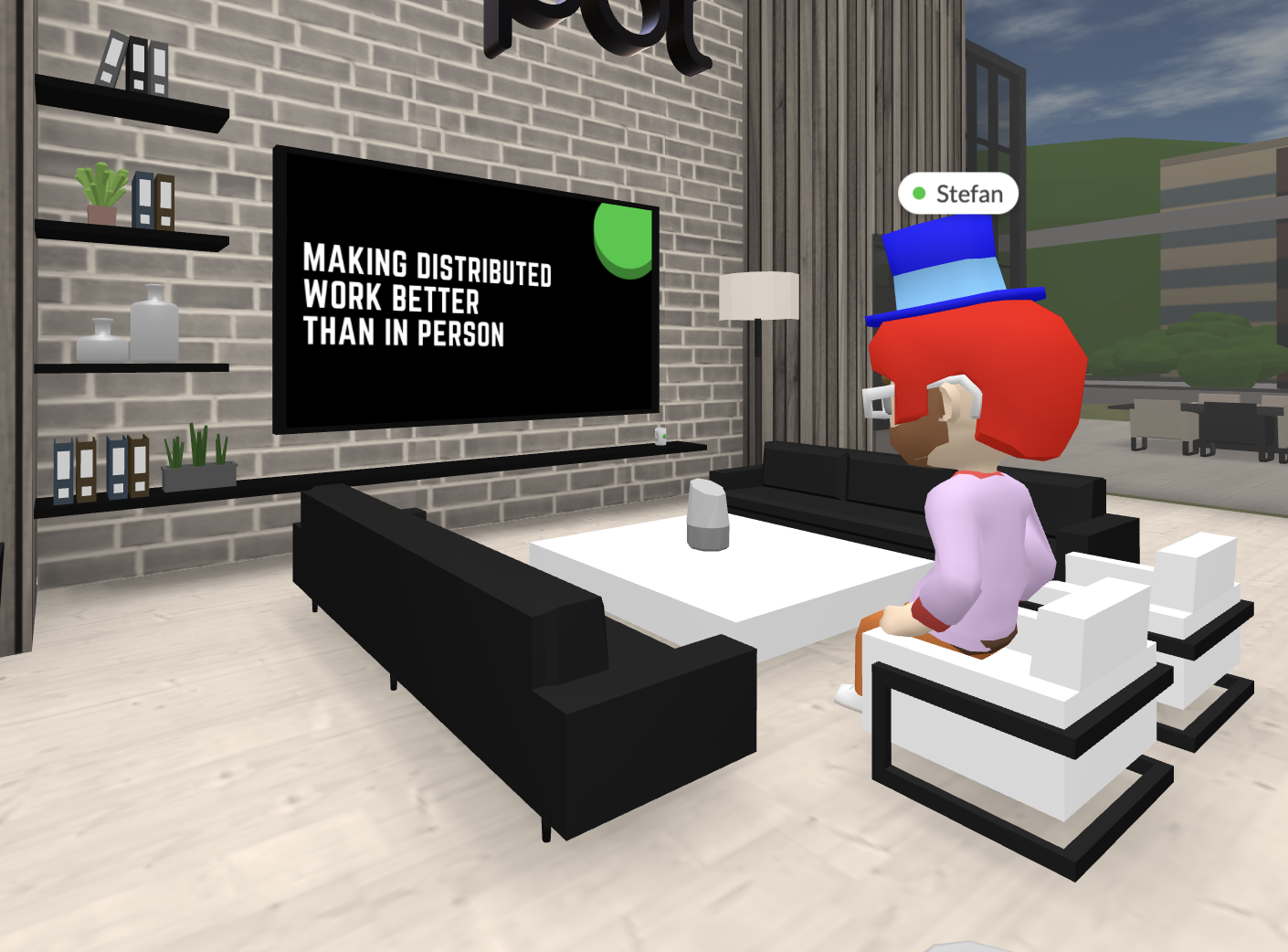
First person view
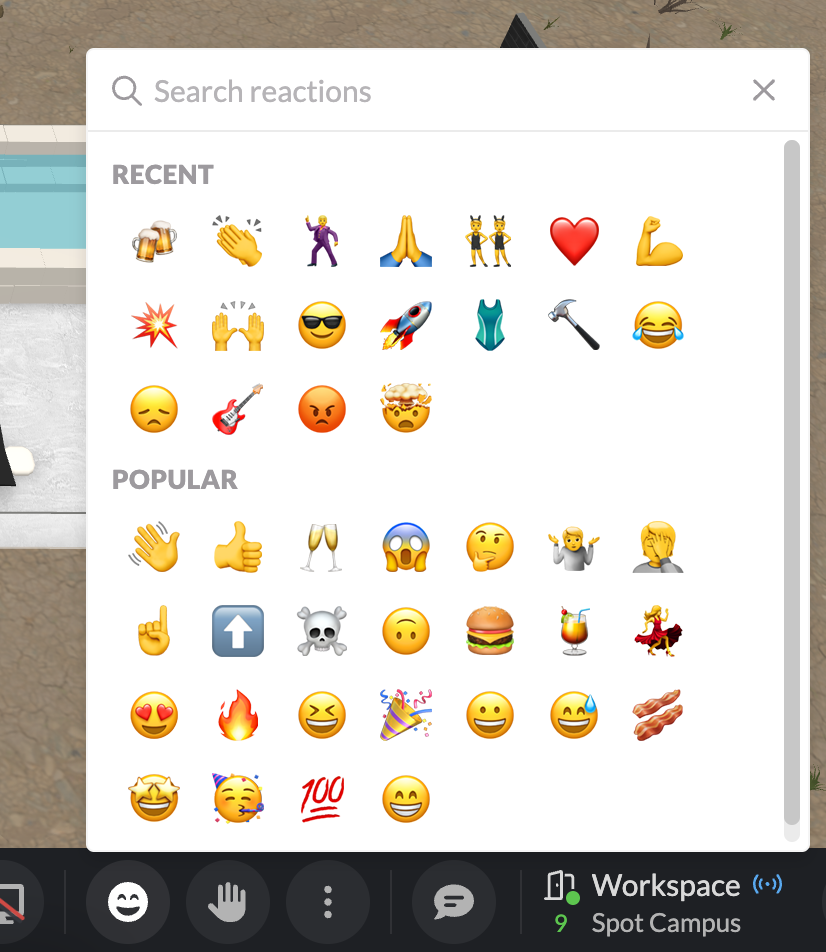
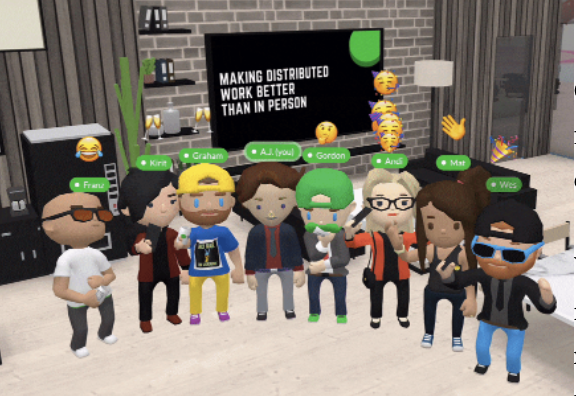
Emotes are by far my favorite feature in Spot!
They allow you to show engagement, even if you don’t have your camera on. So next time you’re in a meeting, and you want to show some support, throw ‘em a 👍, 😄, or a 🌴!
Some emotes interact with your avatar, so keep try ‘em all out!
(Don’t forget, you can also set emotes to keybinds in your User Settings, making it even easier to engage!)
Got a question? raise your hand!
When you raise your hand, it’ll stay up until you put it down, so just once it’s your turn, speak up!
Offer a handshake, high-five, or fist bump.
Play paper rock scissors.
Instead of sharing a screen you and add an item to your room like a sticky note, shared browser, poll, YouTube, or Timer. These items will show up in the bottom right corner of your screen.
Additional functionality actions
- Copy Link grabs a link to your current room.
- Move members will direct other members of your team to you.
- Presenter mode functionality is shared here.
- Lock room is designed to give you privacy for only people in the that room.
- Room settings let’s you customize permissions of that room.
Each room has its own independent room chat thread. Guests by default cannot read previous messages.
Use the blue button in the upper right of the calendar window to schedule a meeting for the future. You can automatically sync your Google calendar to Spot. Use the link from your invite to share with people you want to join in the future.
Stay up to date with messages that are unread. This includes room, channels, and direct messages.
Recent conversations.
Message people within your Team or across different Spot teams. Use the “To:” option to create a group message.
Use this menu to do things like
- Share your status with team members
- Toggle headphones mode to avoid notifications and noisy distractions
- Update your user settings menu
- Change your avatar
- Access the tutorial by selecting “Learn how to use Spot”
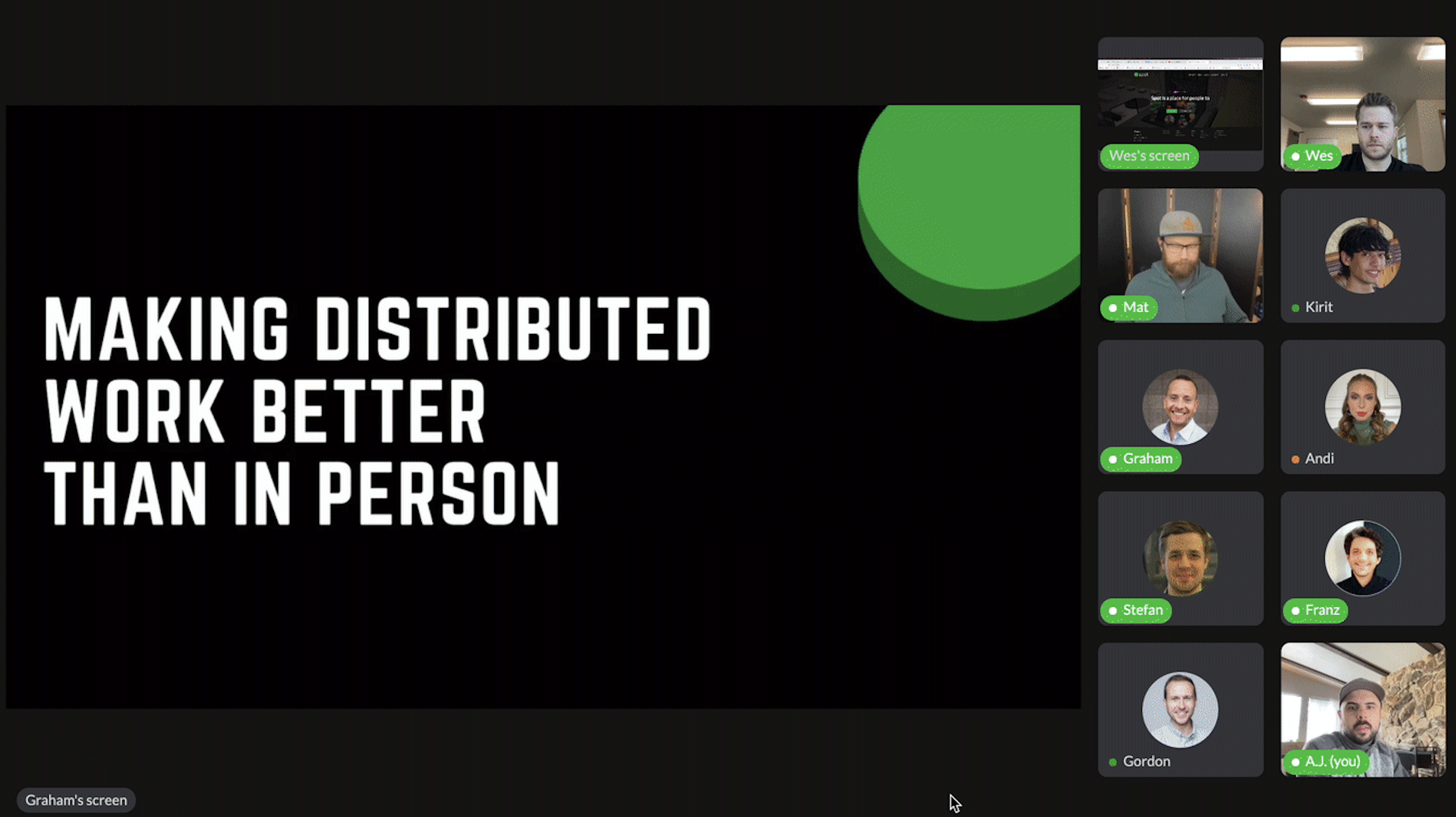
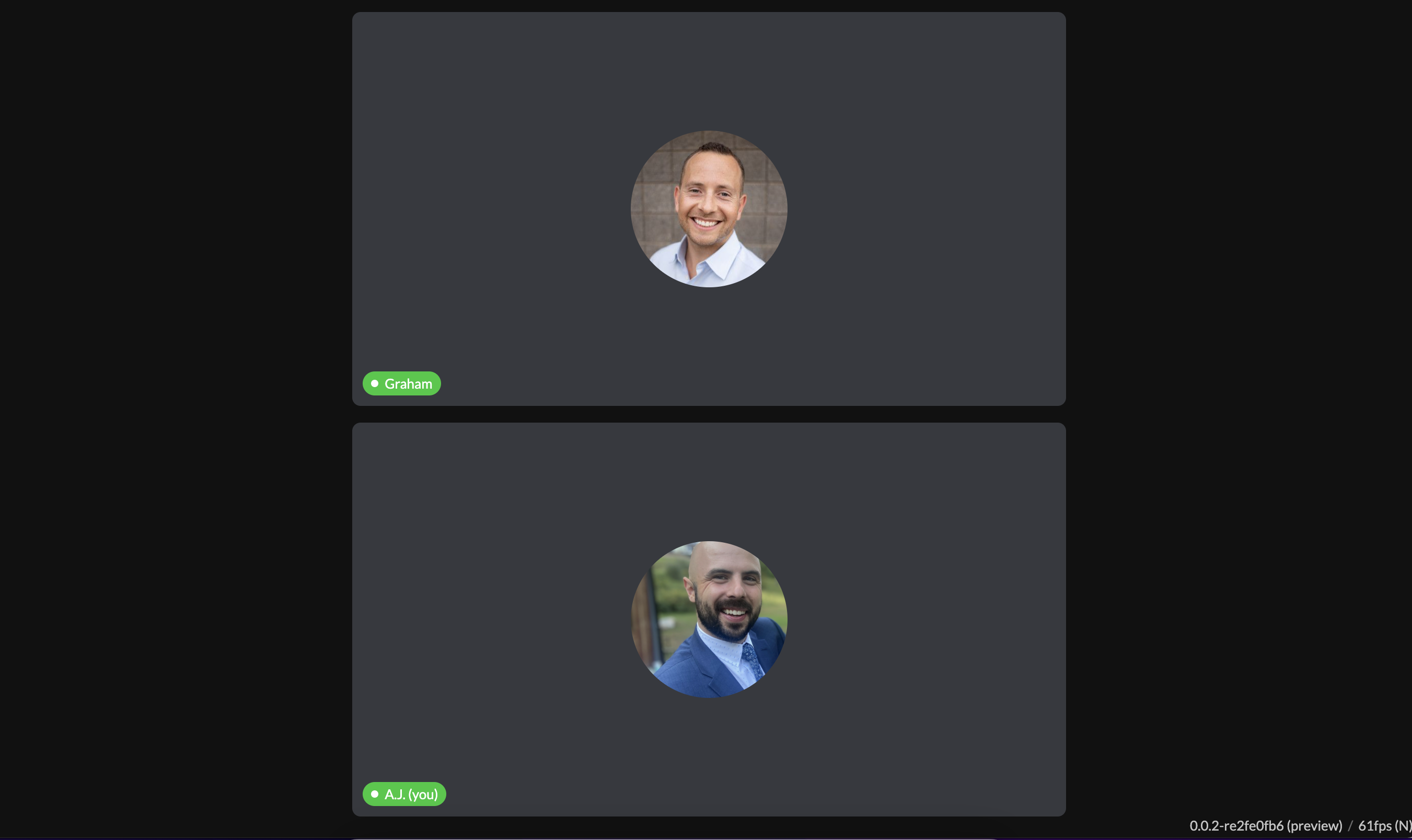
The 3x3 Grid Icon will allow you to jump into a view that rivals some of the other (super boring) screen sharing platforms that are out there.
Also, look for the 📌 icon to select what you’d like in the full screen.
If you want guests that you’ve invited to your office to land in this same view, make sure to click “Start in Grid View” when you’re curating their invite link!
Top down view will auto adjust to the default camera for that room.
It gives you the easiest ability to zoom in/out on your office, and if you right click & hold, you can easily pan around the office.
First-person view is just like what it sounds like. It looks at your office from eye level of your avatar.