You remember the conversation. Someone shared the budget, answered a question, or made a decision. Finding that message again should take less time than asking everyone to repeat themselves.
Better message search is one of our frequently requested features, and we’re excited to introduce it in Spot. Search across your channels, room chats, direct messages, and replies, narrow the results with filters, and jump straight back into the conversation.
Start with what you remember
Open Quick Search with Cmd + K on Mac or Ctrl + K on Windows, then choose Search messages. Looking for something in a particular conversation? Use the search icon in its header to start there.
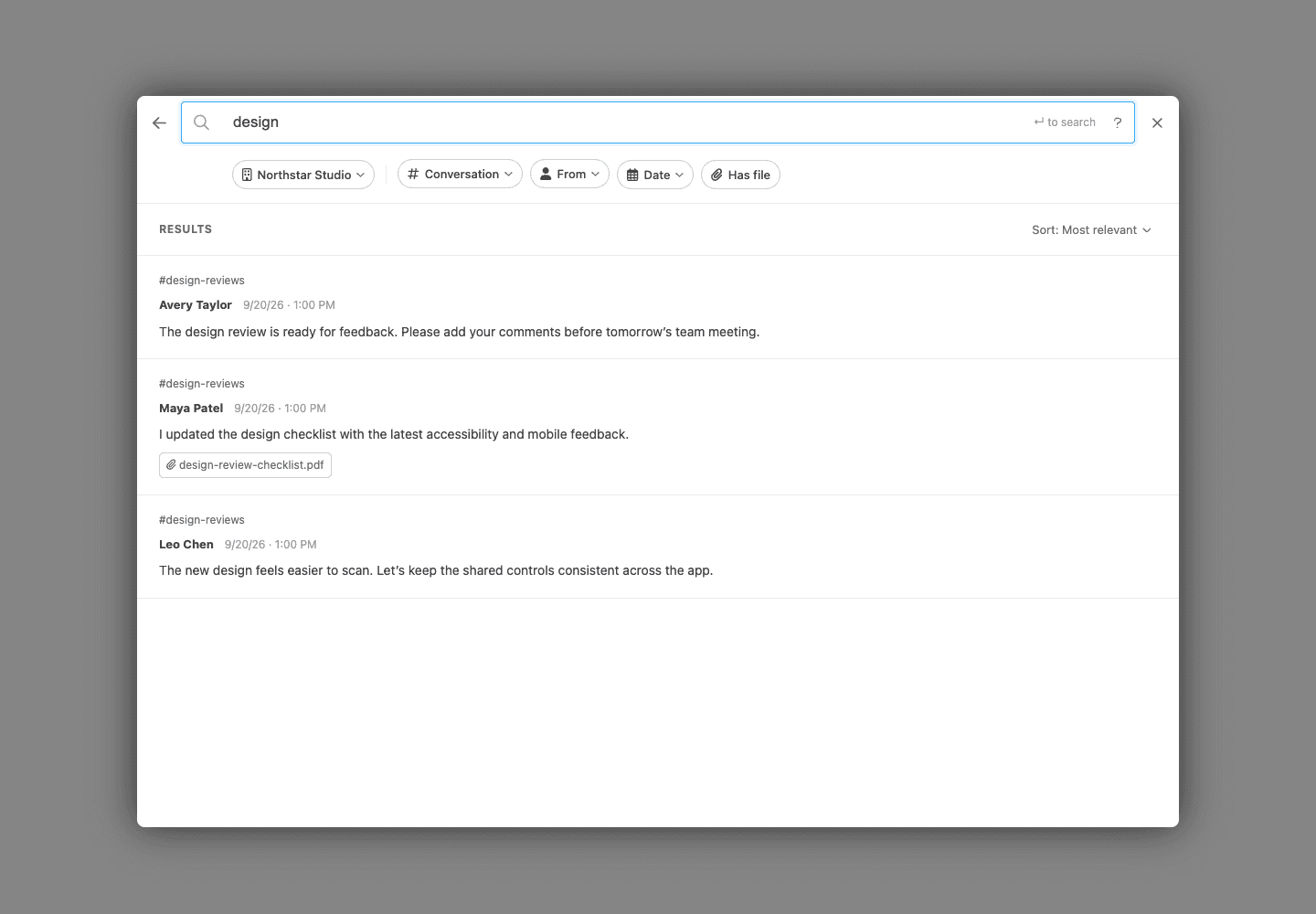
Search within a team, or choose Everywhere, including DMs to look across your accessible teams and direct messages. Results show the conversation, sender, date, and a message excerpt, so you can recognize what you need before opening it. When you search Everywhere, they also show the team.
Less scrolling, more finding
Remember who sent it, roughly when it was shared, or that it came with a file? Combine those clues:
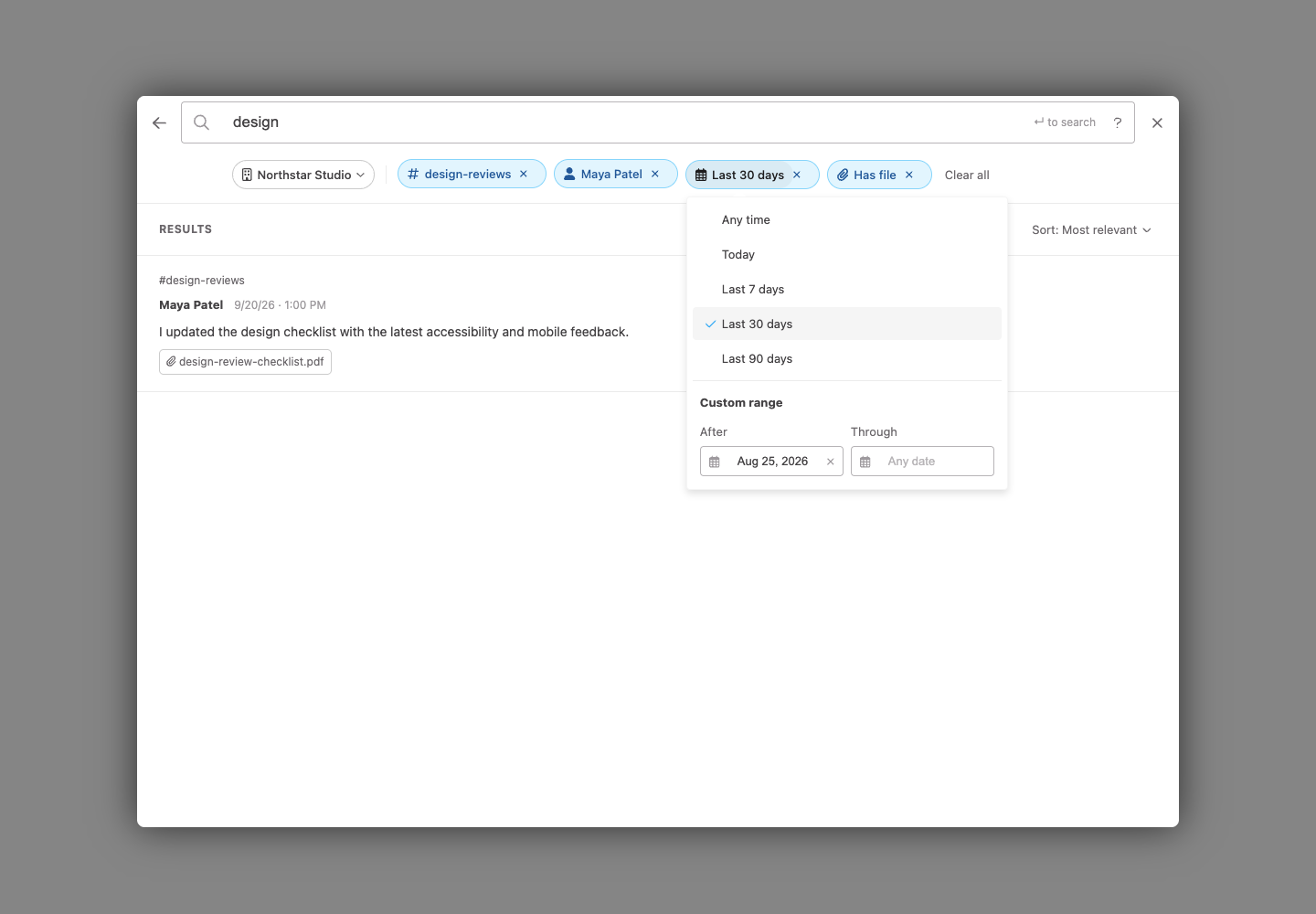
- Use the Conversation and From chips to choose a channel or room and a sender.
- Open Date for Today, the last 7, 30, or 90 days, or a custom calendar range.
- Turn on Has file or search a filename to find a shared attachment.
- Use Sort beside Results to choose Most relevant or Newest first.
You can also put a phrase in quotes, use OR to find either term, or exclude a word with a minus sign. If a single-word search finds no matches, Spot can try word beginnings and similar spellings, with a notice explaining why those results appear.
Keep the context
A matching sentence is useful. The conversation around it is often what you actually need. Select a result to preview the conversation at that message, read the surrounding discussion, and open the conversation when you’re ready to pick it back up.
On your phone, too
On mobile, the same filter chips stay in one row. Swipe sideways to reach Date and Has file. Tap a result to read the conversation, then use the back arrow to return to your search.

Search respects your existing access: results only include conversations and history you have permission to read. Attachment search matches filenames; it does not search inside uploaded documents or images.
Ready to find that message? Open Search messages in Spot, or read the message search guide for a walkthrough and more search tips. Thanks to everyone who asked for this and shared how they search.