Inviting your teammates
Your virtual office is more fun when you have more people in it - here’s how to invite your teammates to the office!
Tip #1
when you invite someone as an Admin/Member (or any other role you’ve created), their membership will persist, meaning that they can come back into the office at any time. If you’re inviting someone in for a specific meeting, make sure to use the Event invite flow instead.
Tip #2
When you curate an invite link, it can be shared with lots of people, you don’t have to create an invite link for every single person you want to join your office. So once you’ve made your selections for the invite, share that link far and wide!
Inviting a teammate(s)
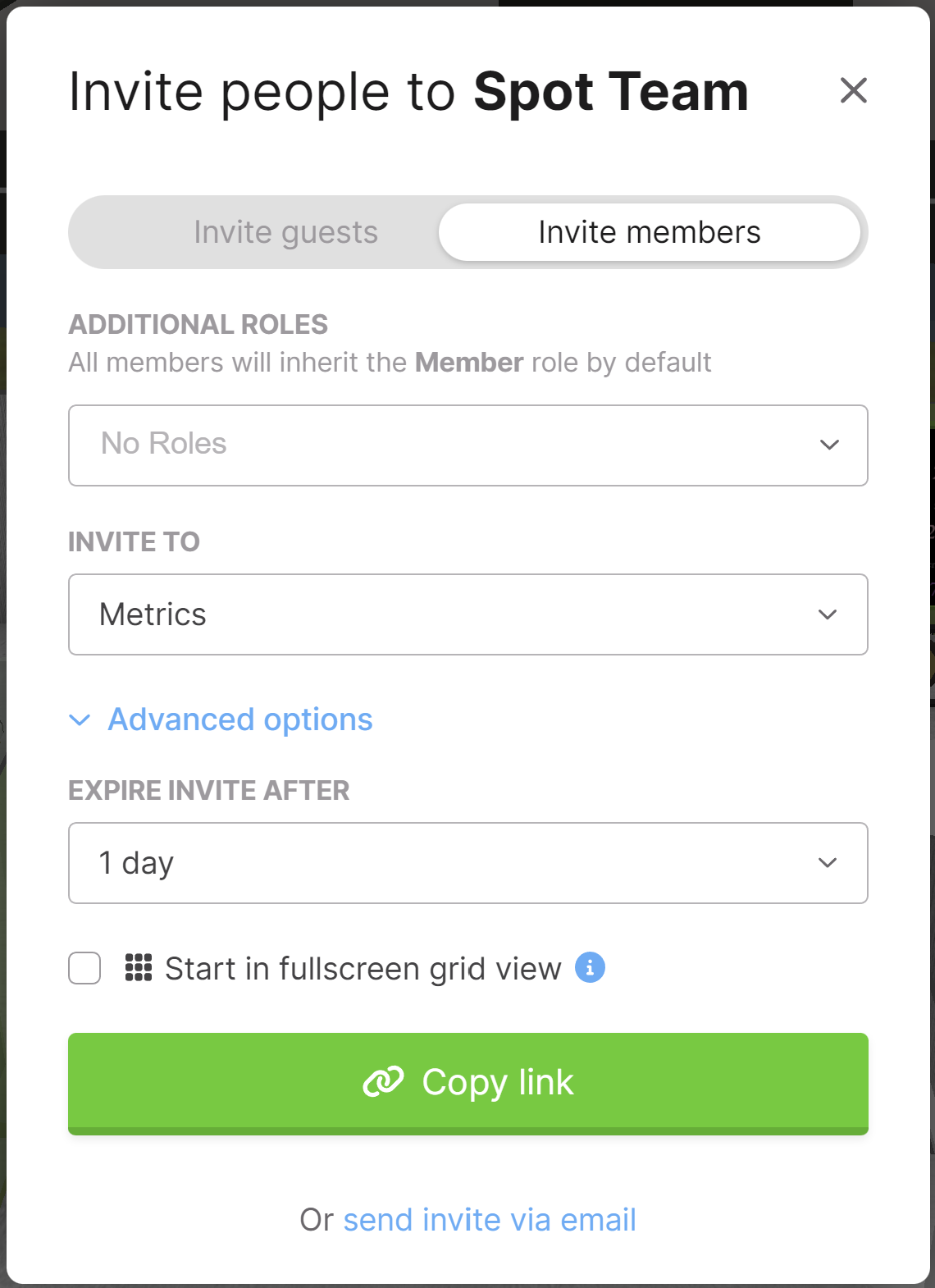
To invite someone to your office, look for the Invite icon in your toolbar.
- Uncheck the Bring in as a guest toggle
- Assign them the appropriate member role
- Select the space that you would like them to start in when they first enter the office under the Invite To field
- Select how long you’d like the link to be live for in the Expire Invite After field.
- You can select if you want them to start in a grid view (but I wouldn’t check this for new members, you want them to see how cool your office is!)
- Then copy the link (or send it via email) and you’re all set!
Select role
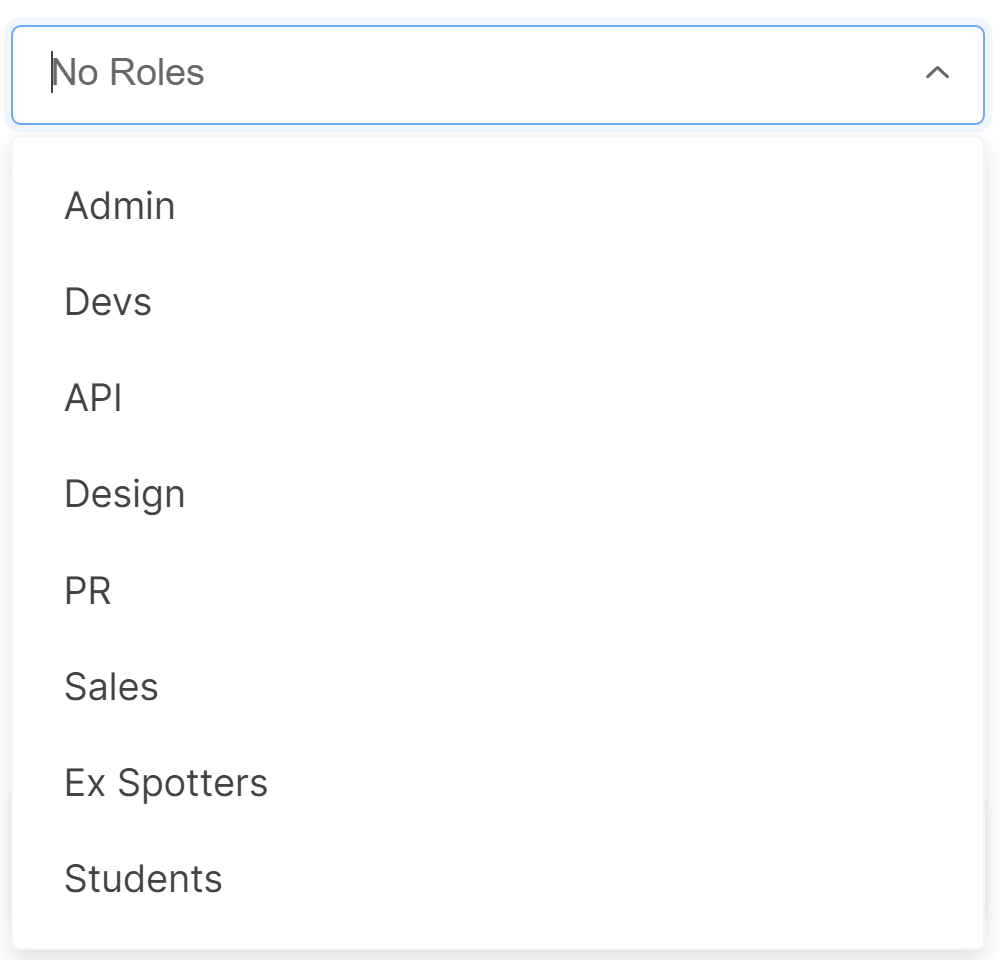
Choose which role that member should have in your organization.