Spatial Zones
If you’ve read the article on Spatial Zones, let’s dive a little bit deeper in how Spatial Zones can be used in your office.
Spatial Zones work great in communal spaces are created to ensure everyone can hear each other equally. For example, if you have Spatial Audio enabled in your large, communal workspace, you may want to add in a Spatial Zone around a large circle couch that you host standup in, so that way everyone can hear each other equally.
Look for conversation zones throughout our templates, indicated by a green square, rectangle, or circle on the floor.
Spatial Zones in Action
Setting up Spatial Zones
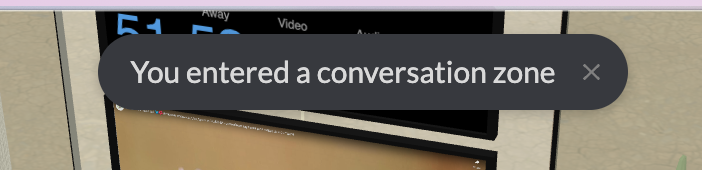
Anytime you enter a Spatial Zone, you’ll see a notification across the top of your screen that you’ve entered a Spatial Zone.
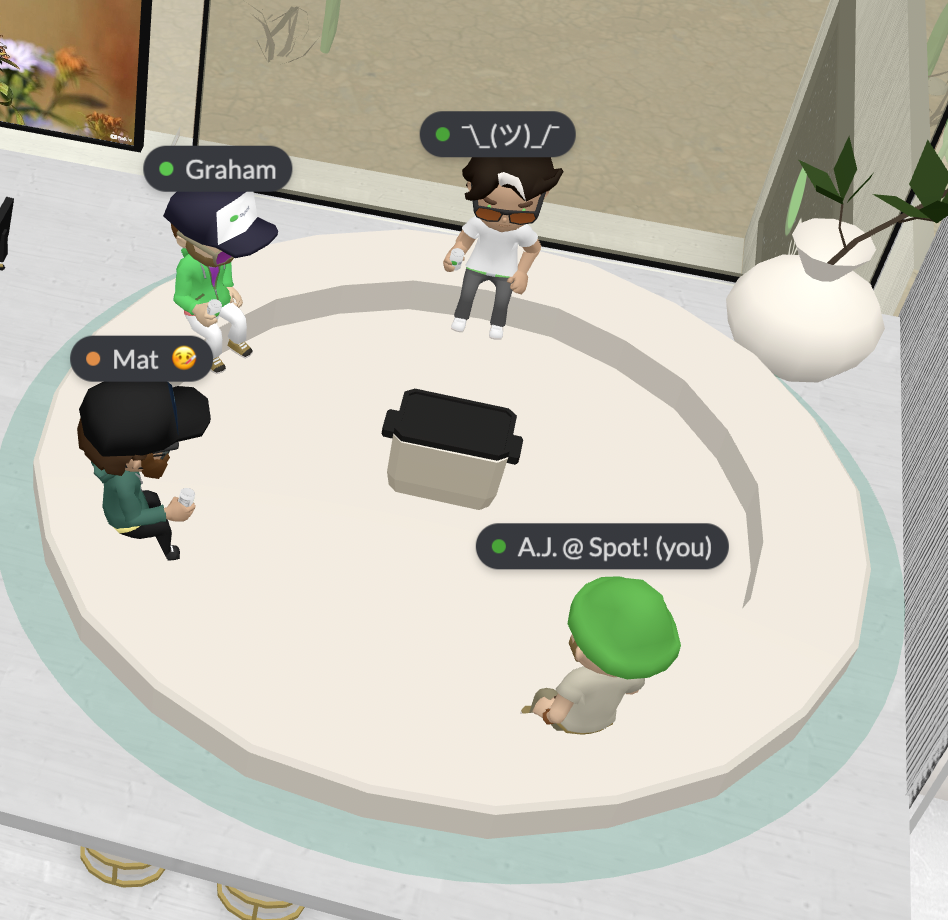
In this situation, if we had Spatial Audio on in our Workspace, but didn’t have a Spatial Zone applied, Graham wouldn’t be able to hear me, because he’s too far away. The Spatial Zone solves that problem.
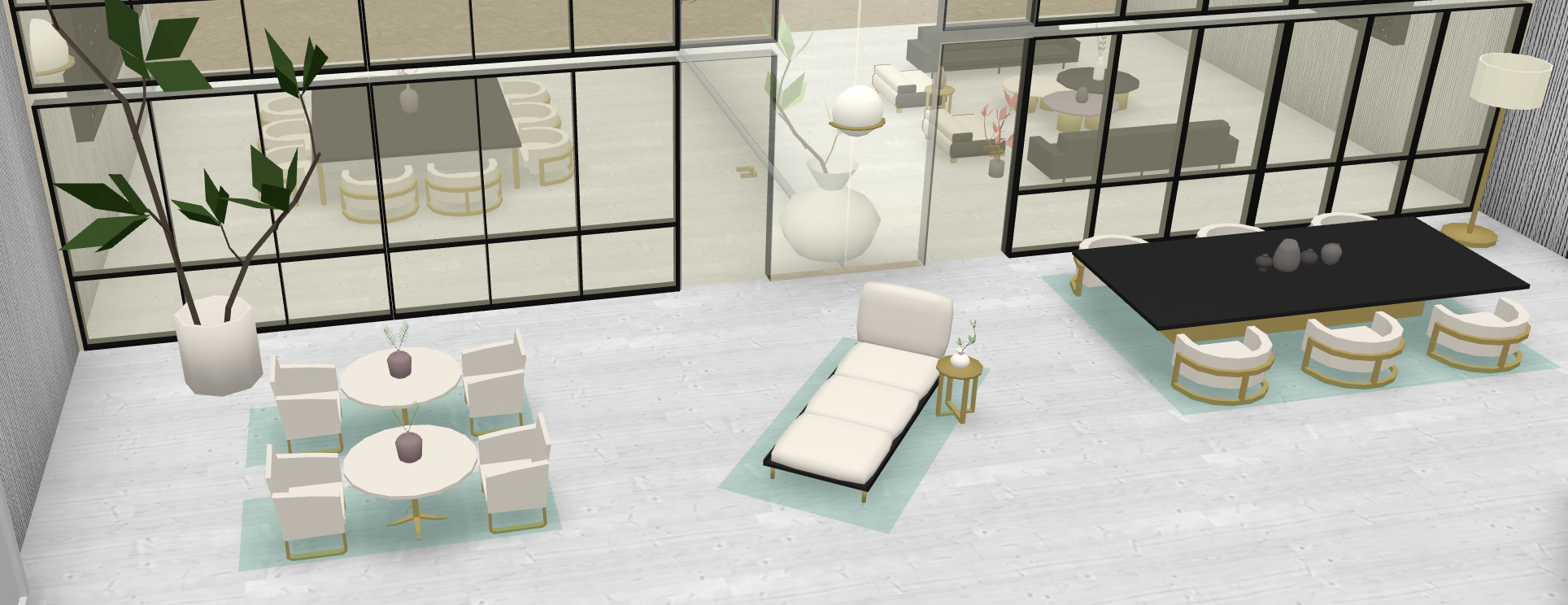
Here, you’ll see a variety of Spatial Zones applied to tables and chairs. This gives you the opportunity to have a conversation with someone in a larger space, without interrupting the entire office.
To setup or modify Spatial Zones, you’ll need Edit World permission from your admin.
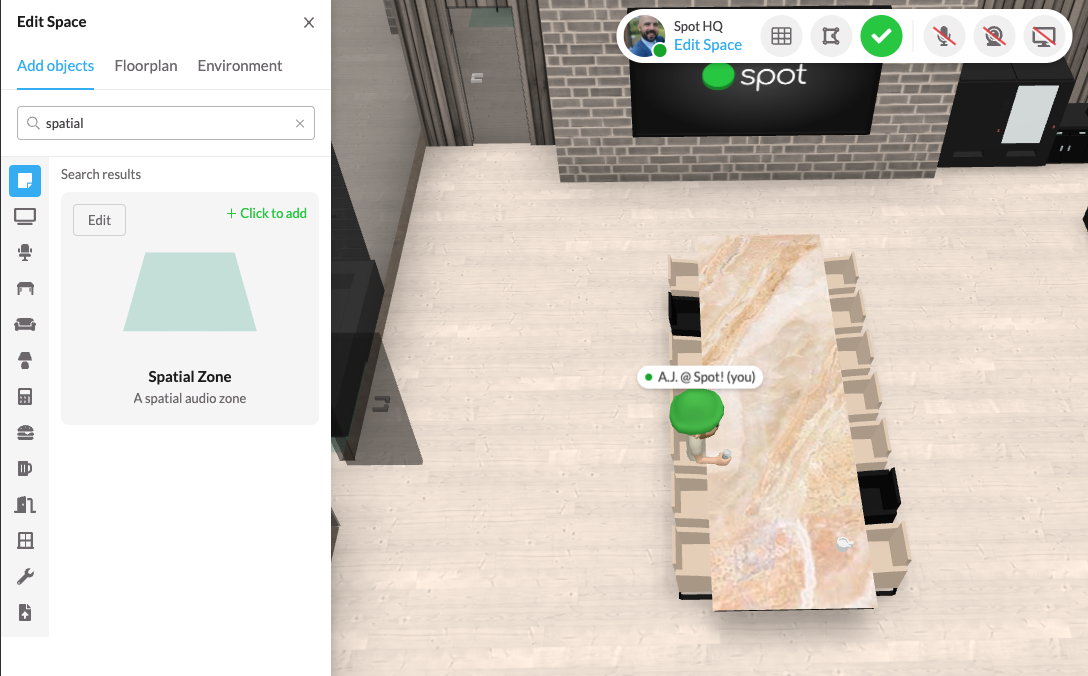
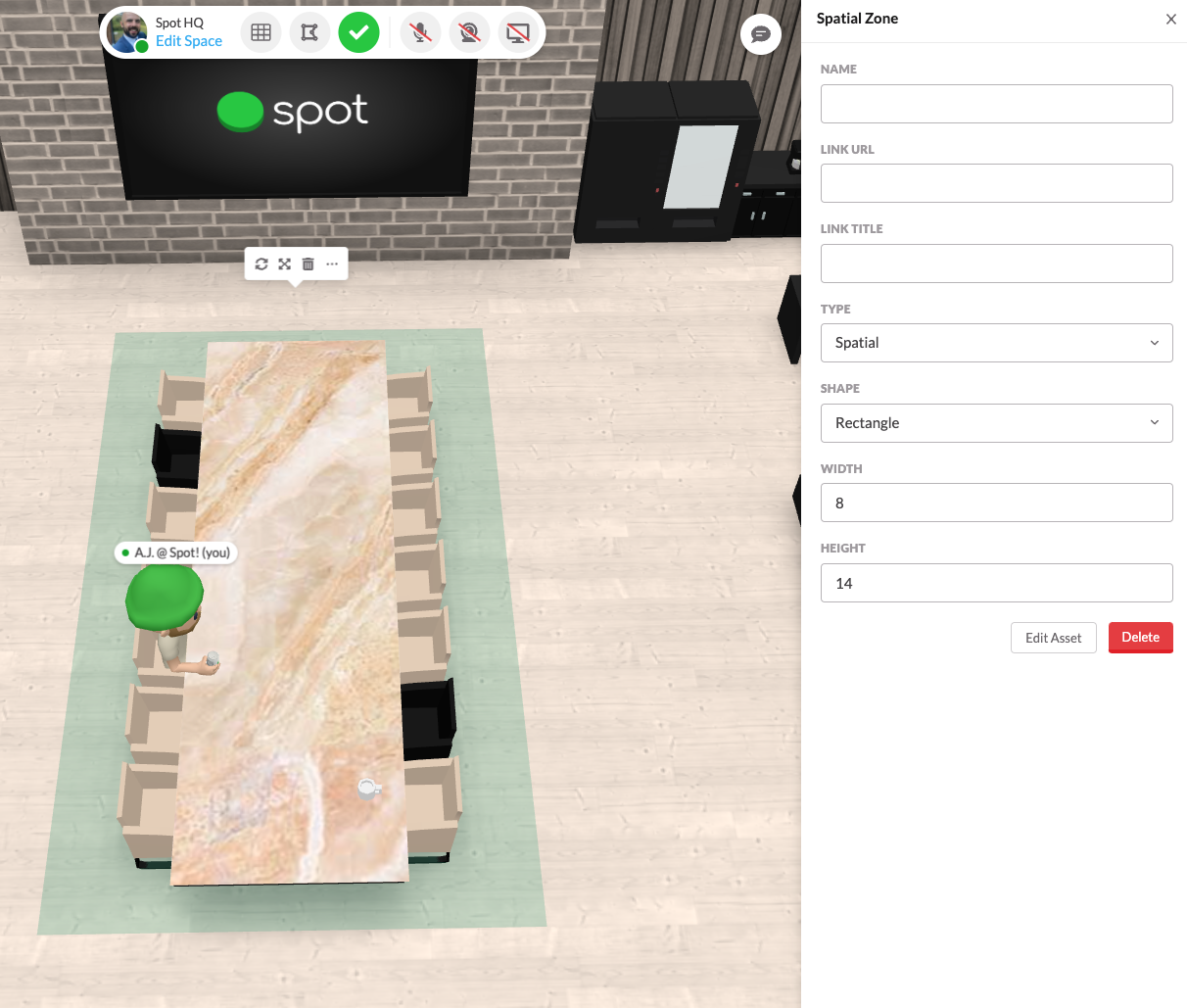
First, go into Edit and search for Spatial Zone
Then, you’ll see on the right hand side of your screen, the ability to modify the Spatial Zone. Use the height and width to increase the size of the Spatial Zone as you place it around your office.
Spatial Zones can be a little tricky, so if you have questions, make sure to reach out to us! support@spotvirtual.com