Locked Rooms - Admin Setup
If you want to give your team the ability to have private conversations, make sure to check out the below details!
Admins have the ability to enter locked rooms, as well as unlock a room.
(The instructions below are only for people that have the ability to Edit Rooms and Lock Rooms in Roles.)
Setting up Locked Rooms
Locking a Room
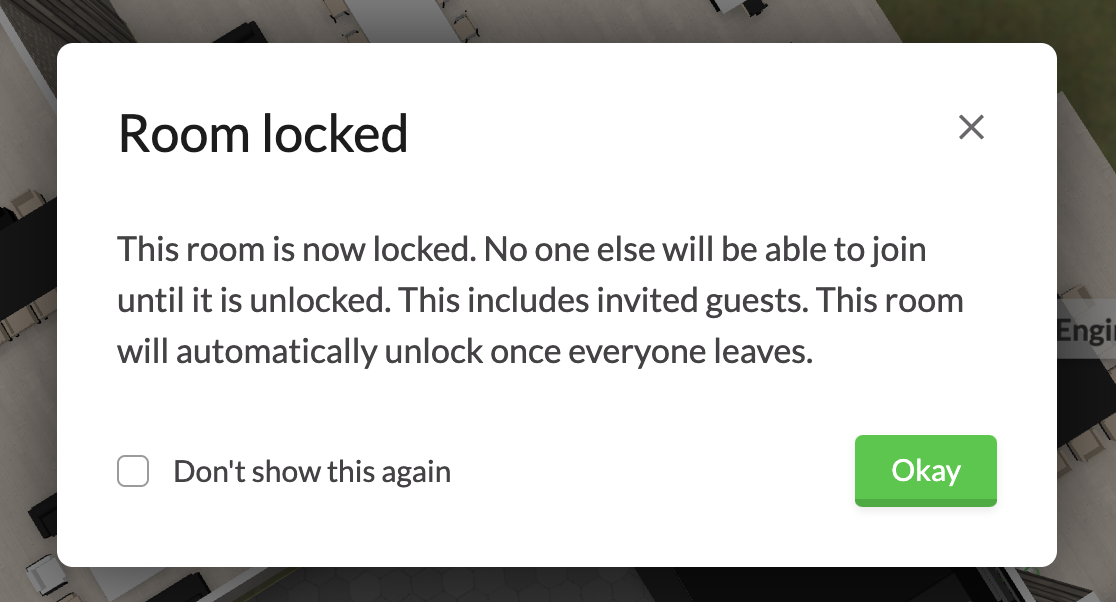
Once a room is locked
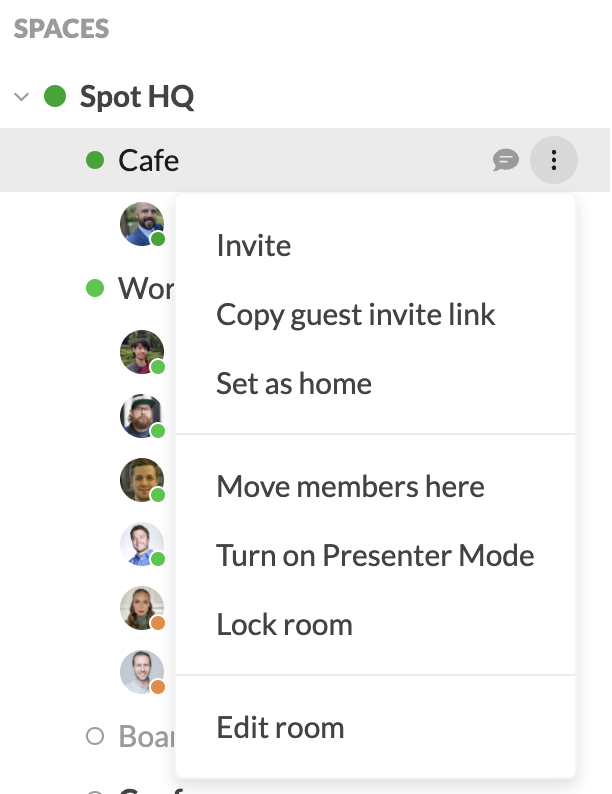
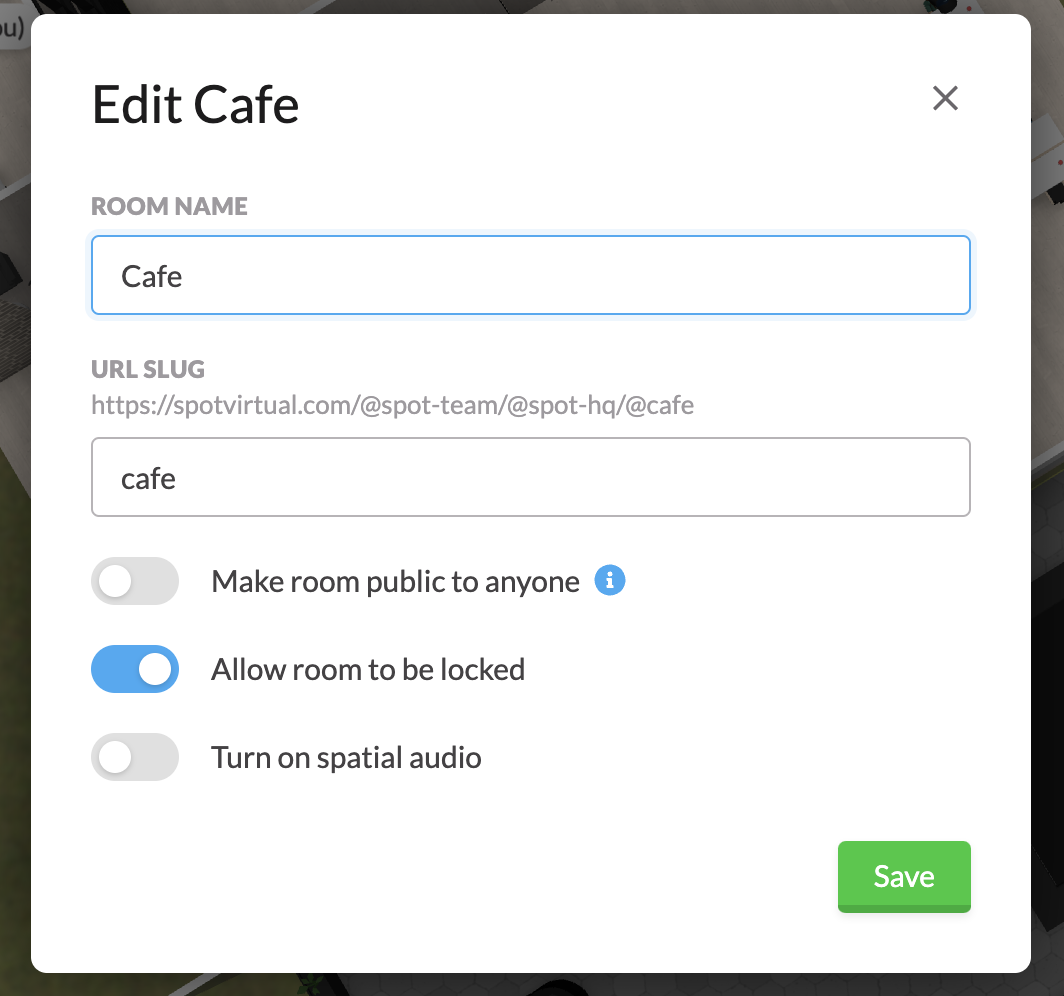
First, navigate to your left toolbar, and select Edit Room
Then, select the toggle for “Allow room to be locked”
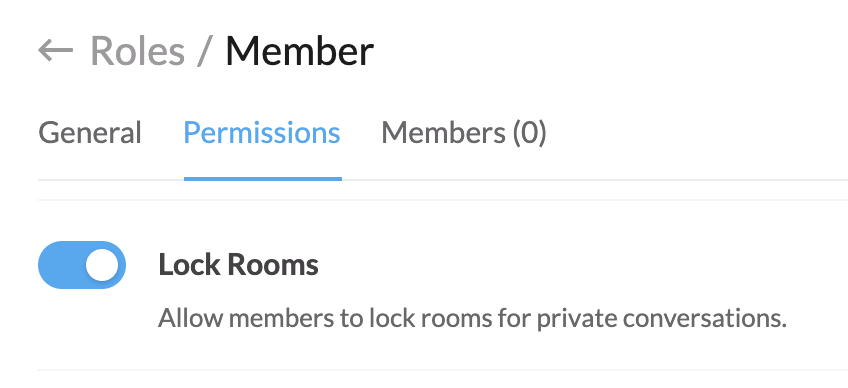
If you want your team to be able to lock rooms, make sure to go to Team Settings → Roles → Permissions and enable Lock Rooms
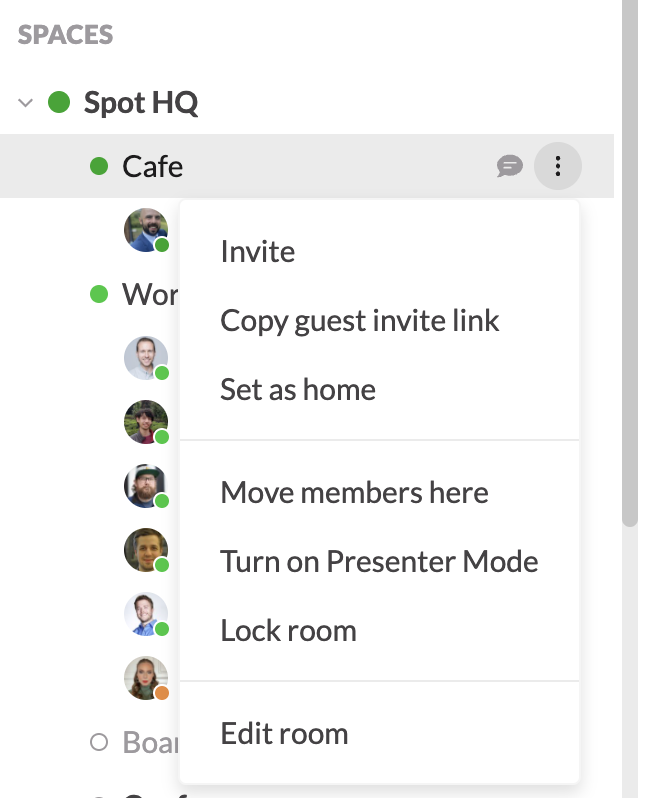
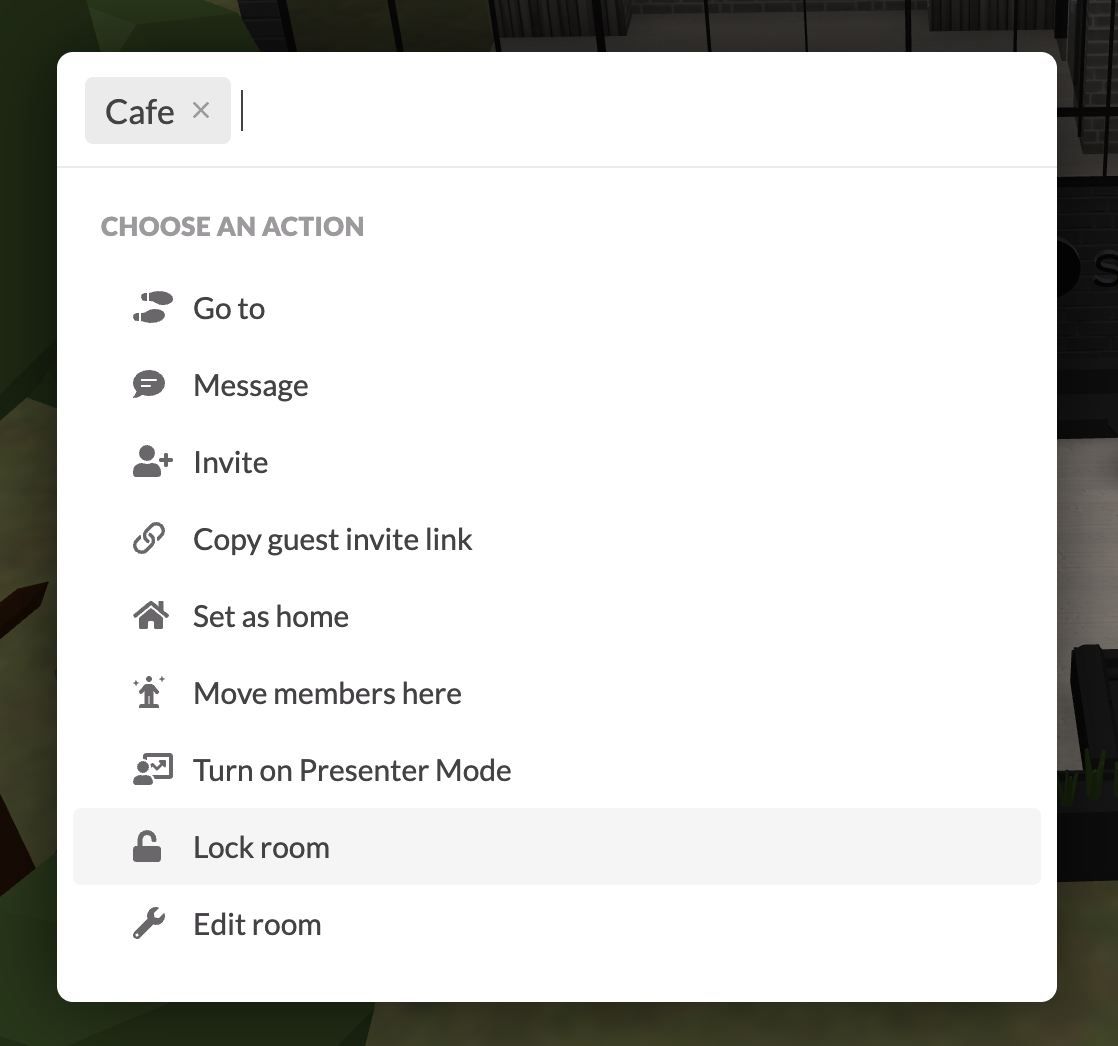
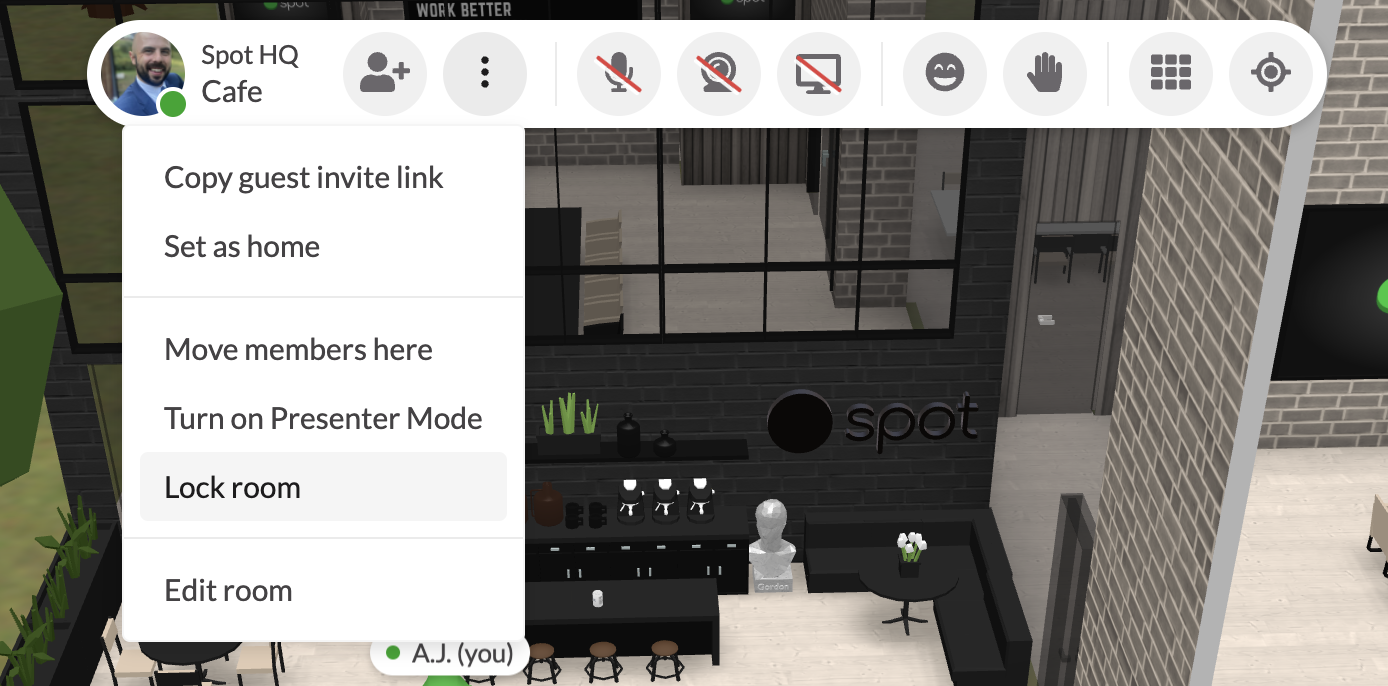
Once it has been determined that a room can be locked, look for the ability to lock a room:
- In your left toolbar
- with Quick Search
- Across the top (or right hand side) of your screen
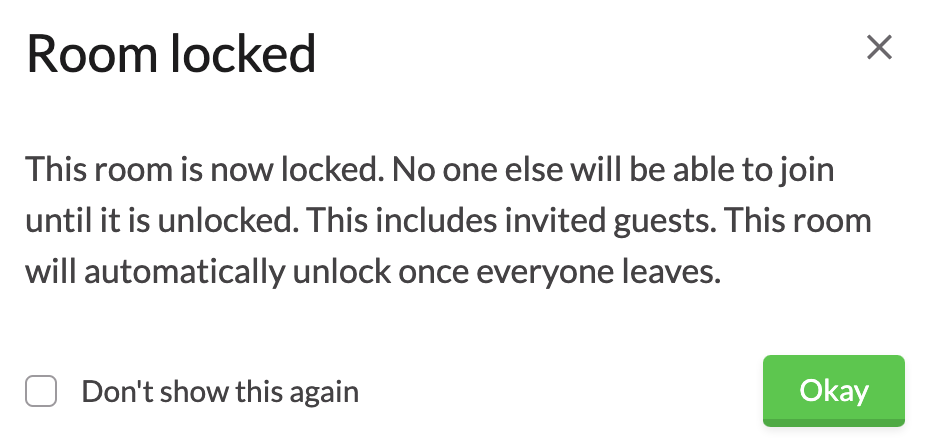
Everyone in the room will see this message.
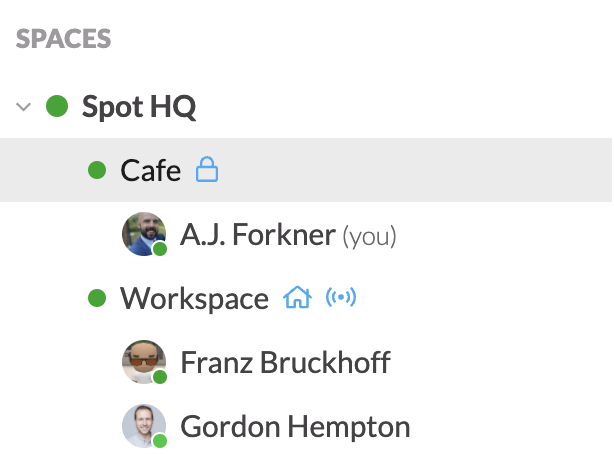
It will also be indicated in your left toolbar with the 🔒 icon in your toolbar.