Creating an Event Link
As you get ready to invite people to your event, you’ll want to give them a link to your space. Here’s how to do it, and a couple of tips.
Setting up the event link:
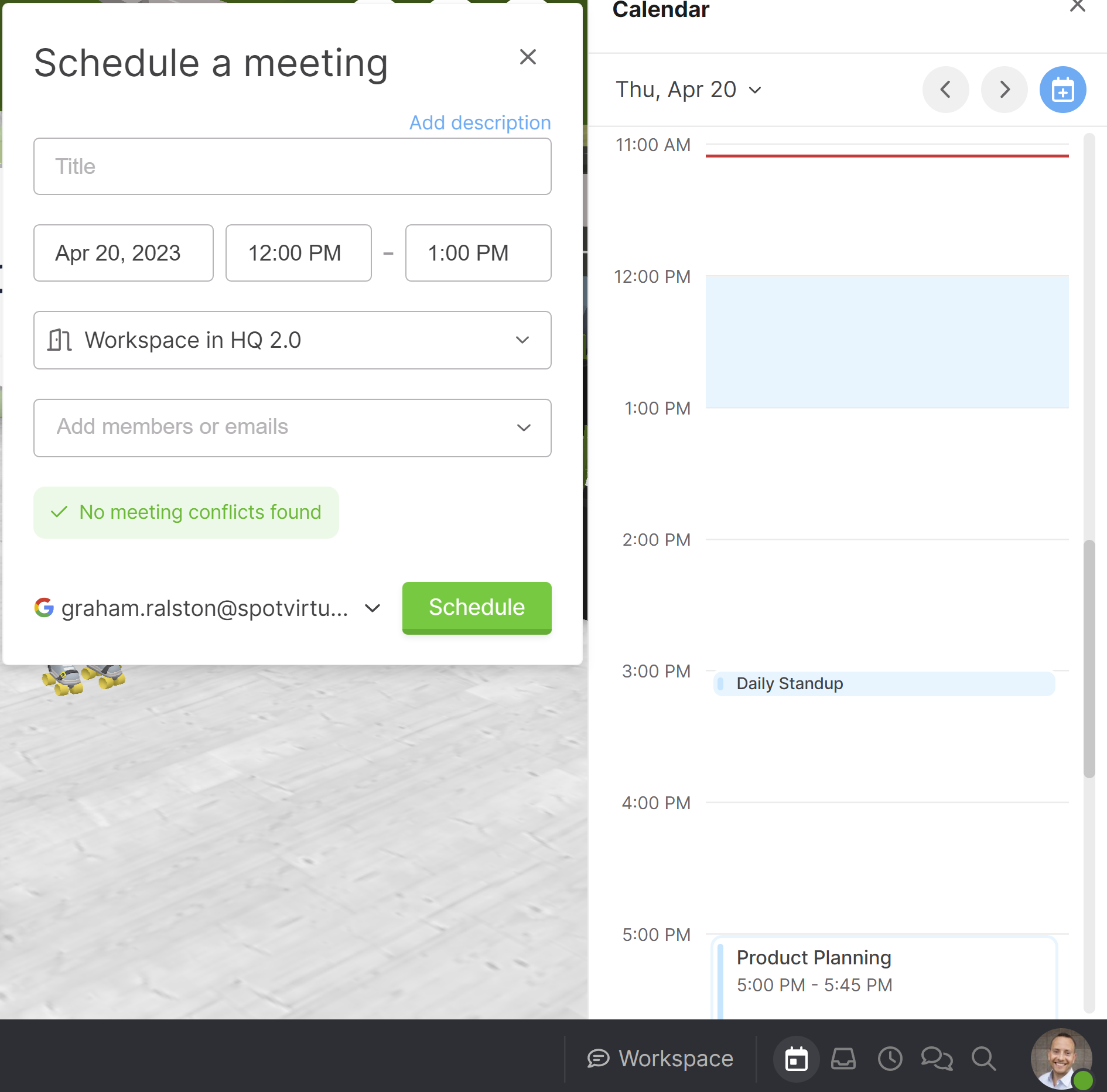
In the calendar, click the blue schedule meeting button in the upper right.
Next, enter all the details of your event, including which room you want your participants to start in. Pro tip: offer a 5-10 minute buffer ahead of the event start time to allow people to get familiar with the event!
You have the option to select Start in Grid View, which will greet your attendees in a view very similar to other screensharing platforms.
Once you’ve set up your Event details, click Copy invite link.
Changing Event Details:
If your guests show up early:
It’s encouraged to share your event link ahead of time.
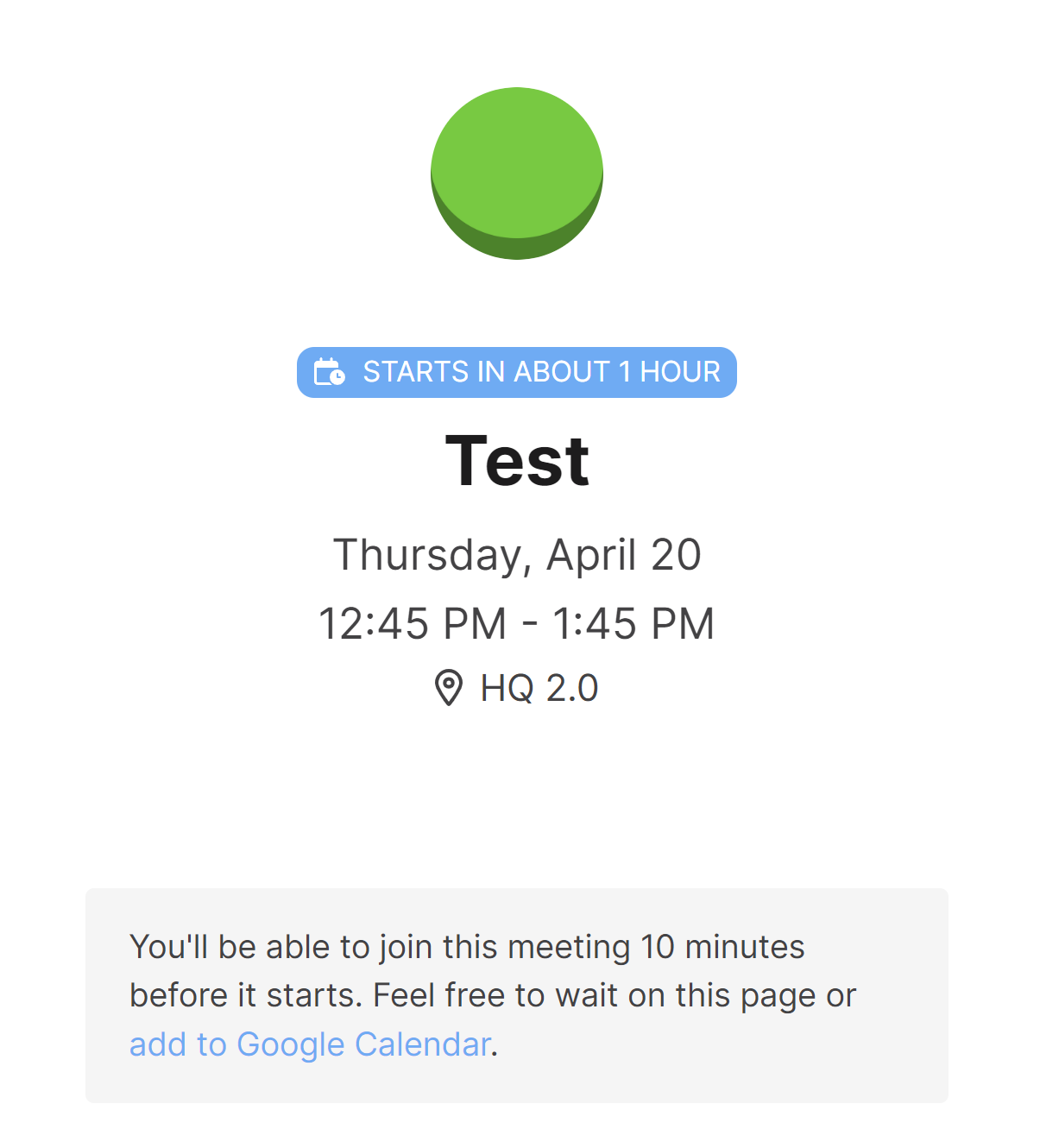
If your guest shows up ahead of the event, they’ll be greeted with a page similar to the one shown here.
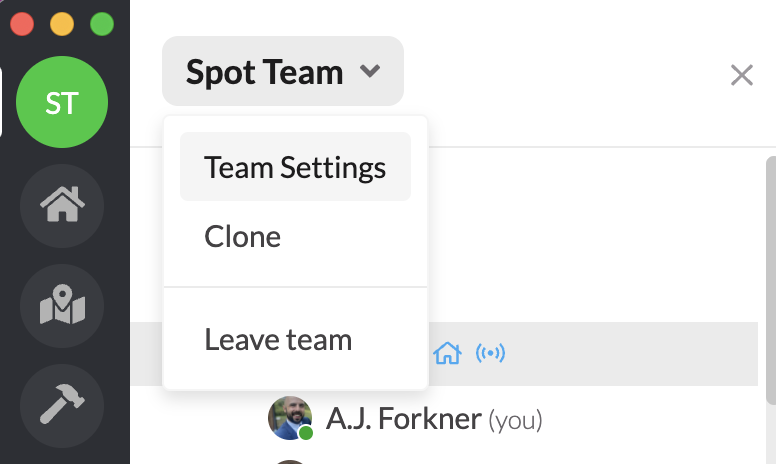
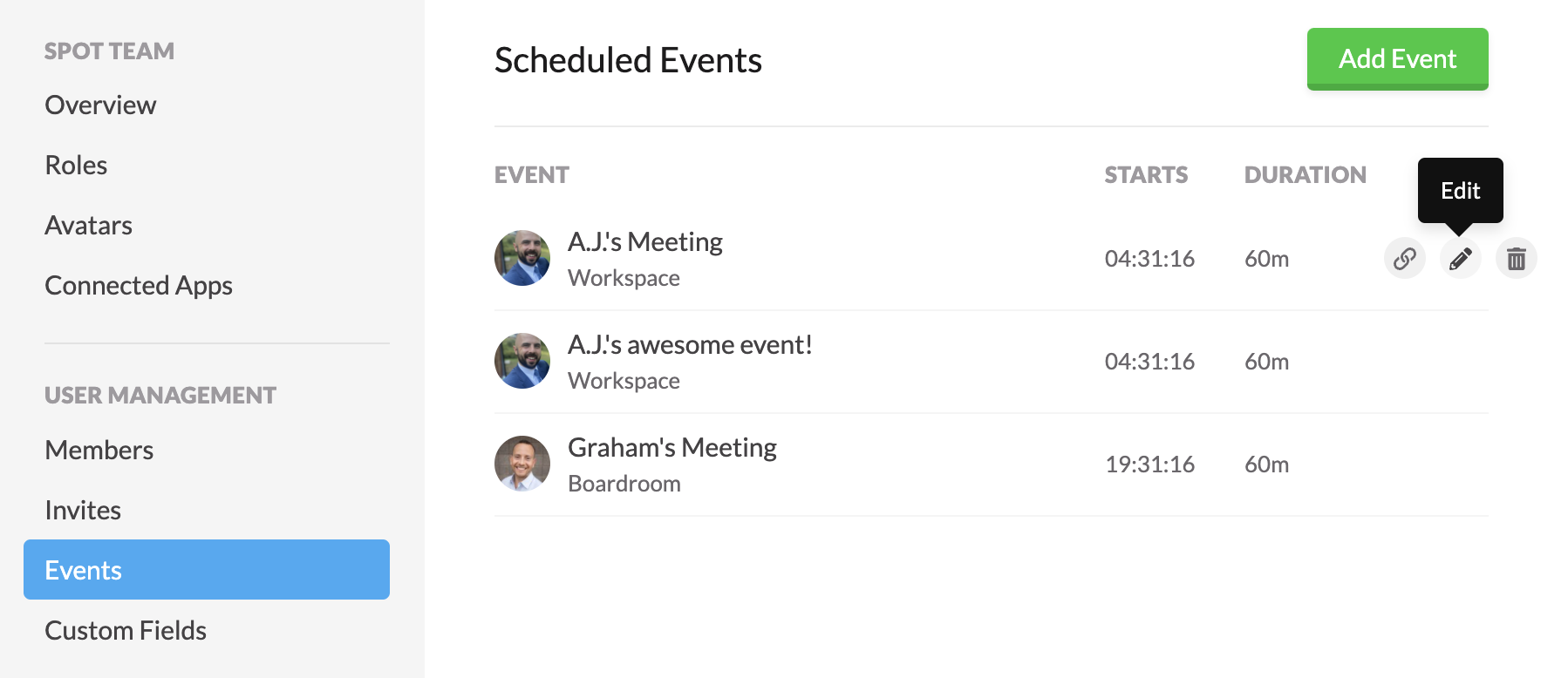
If you need to change any details of your event, navigate to Team Settings → Events. Look for the edit button and make your changes.
If you’ve already shared the link with your guests, don’t worry, you don’t need to send them a new link. All changes are automatically reflected.
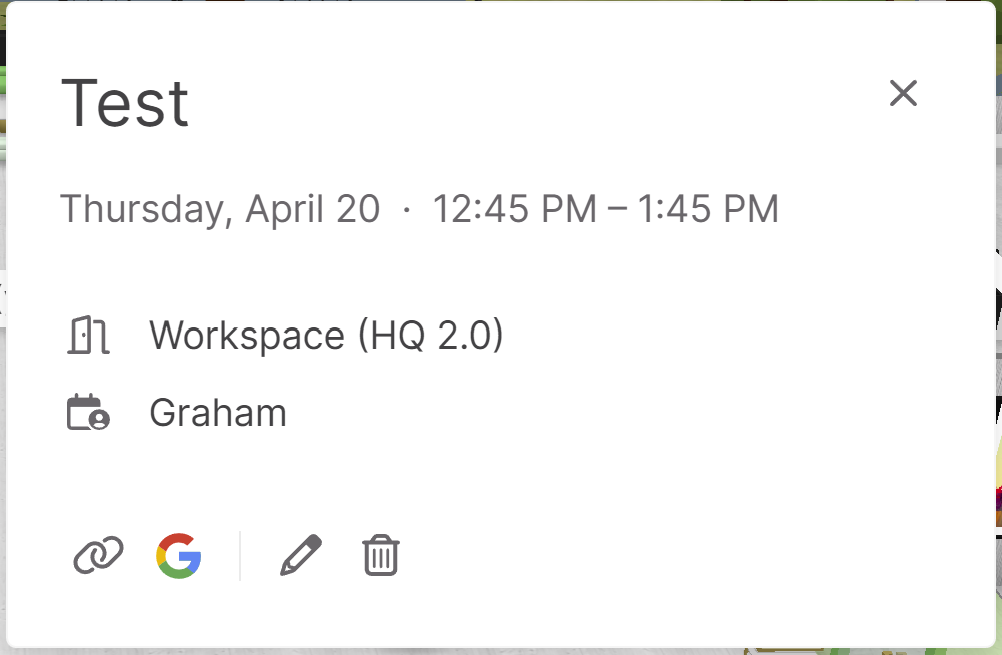
From the calendar you can select the event and then edit as another option.