Roles
This tutorial will go more into depth on how to create, moderate and govern roles. Note: You have to have admin privileges to see build mode in your toolbar
Team Settings
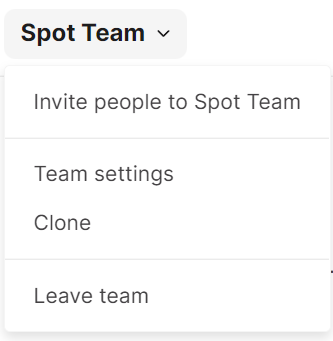
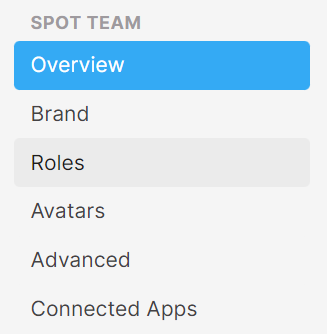
One of the ways to manage and create roles is in Team Settings. Click on your team name and look for “Team Settings” in the drop-down. From there, select the “Roles” tab.

Manage Roles
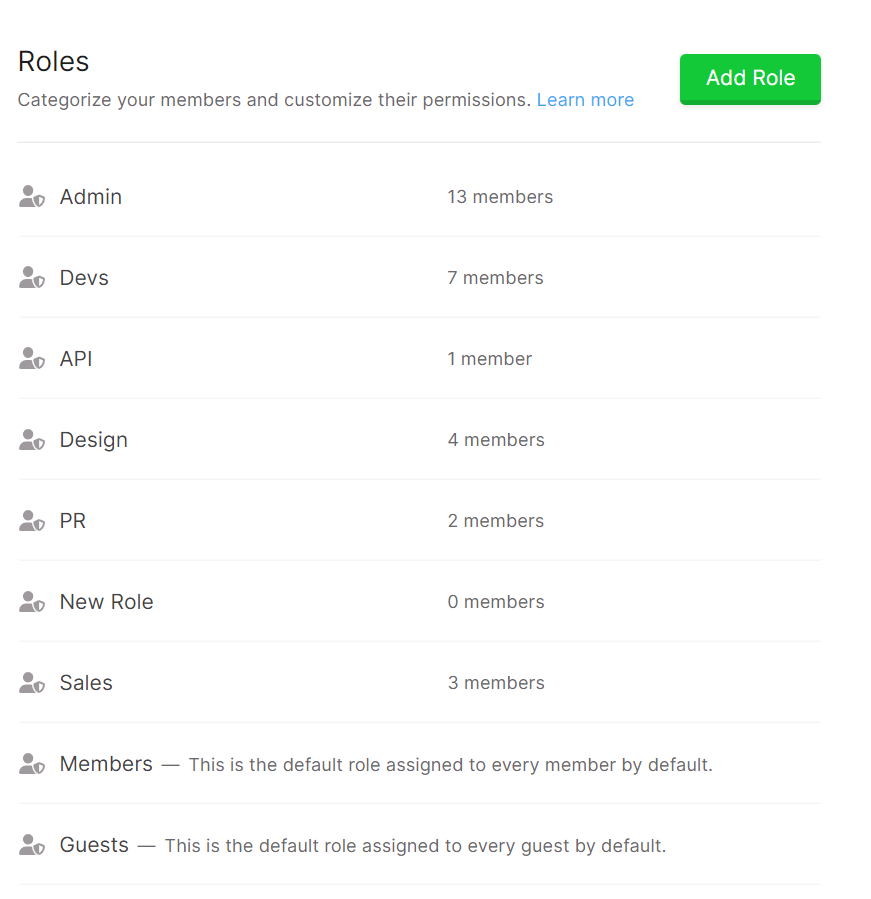
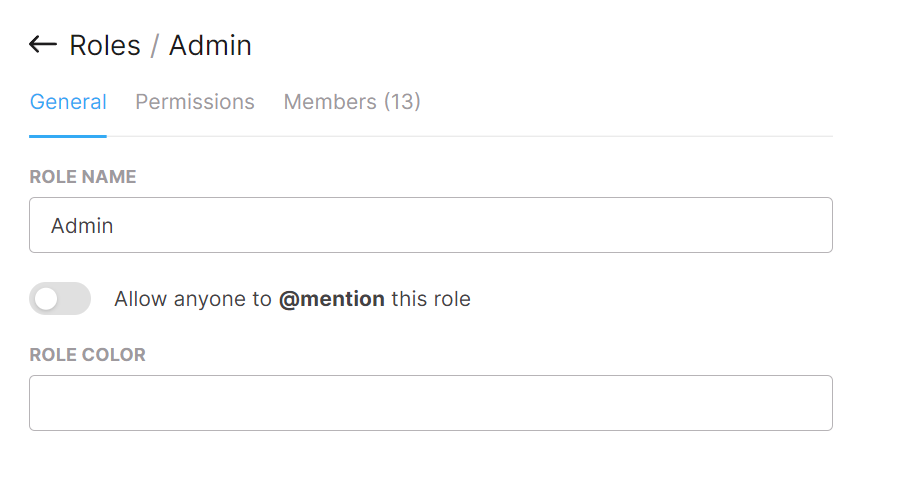
From the Roles tab, you can view all the Roles within your team and manage them. To manage a role, click on the row. From there you will be able to see the settings you can alter within each

Add a New Role
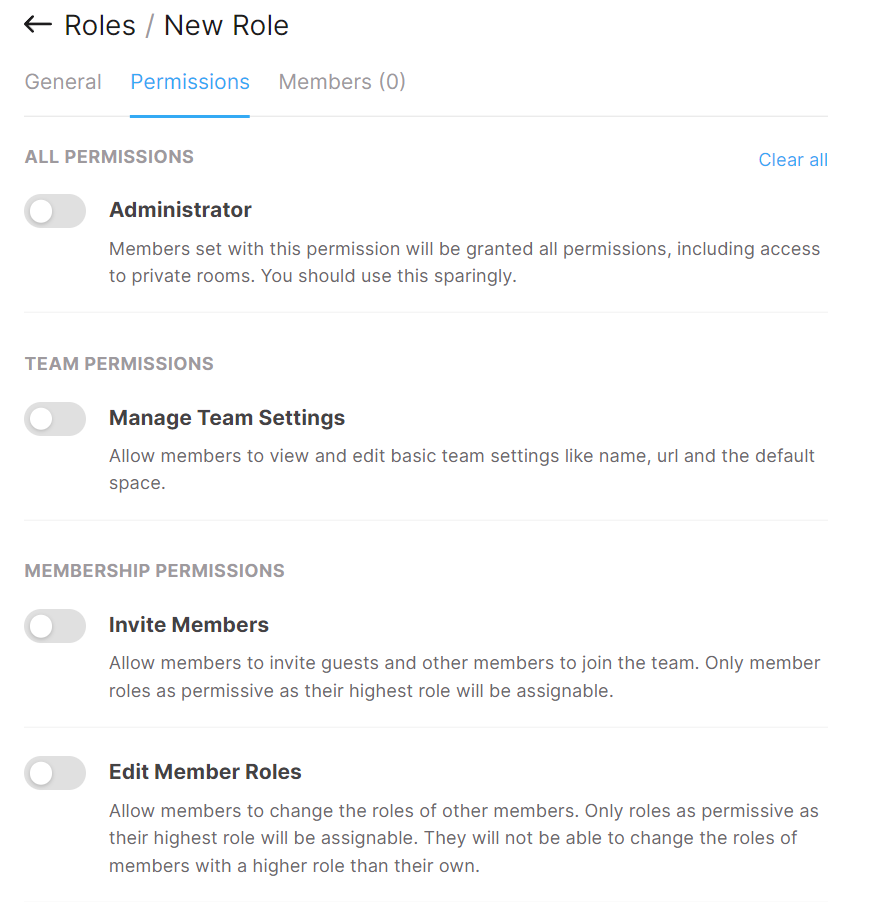
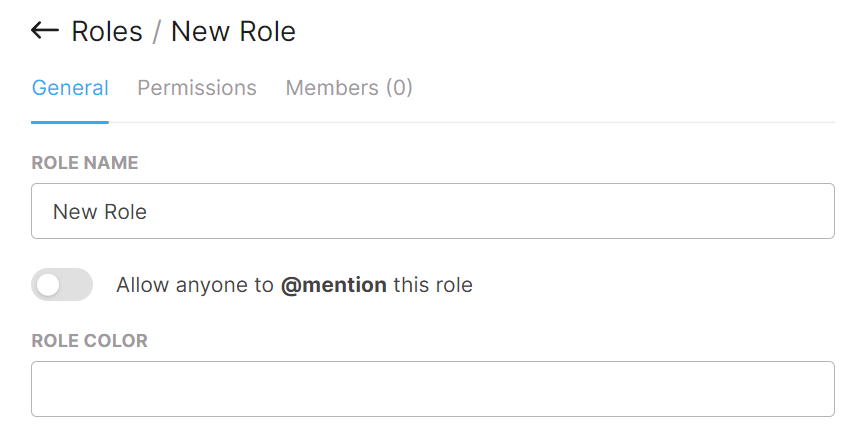
From the same window, you can add roles. Select the “Add Role” button and configure the permission, members, and more from here.


Meeting permissions
In a role's permissions, the Meetings section has two separate controls:
- Manage room transcription lets members configure automatic transcription, room-chat recaps, AI summaries, and who can stop transcription in rooms. This does not grant access to private meetings.
- Manage all meetings lets members view, rename, change visibility, and delete any meeting in the team, including private meetings they did not attend and meetings in deleted rooms. Under the team's Private by default mode, only members with this permission can make a meeting organization-visible.
Team owners and roles with administrator permissions receive both capabilities. Room moderator status alone does not grant permission to configure transcription. Assign Manage all meetings only to people who should be able to access private transcripts; you can assign the role to multiple members so cleanup does not depend on one person.
The team-wide transcription mode is configured separately in Team Settings → Advanced. See Meeting Transcription for the three modes and instructions for managing existing meetings.
Here is a video created by one of our team members on managing roles: