Meeting Transcription
Spot can transcribe the conversations in your rooms, with exact speaker attribution, an AI summary, and action items when the meeting ends. Transcription runs on each participant's device. Audio is never uploaded, only text, attributed by speaker.
*Meeting transcription is available on paid plans.
Starting a transcript
When transcription is enabled for your team, there are two ways a transcript starts:
- Automatically. If a room has auto-transcribe enabled, a transcript starts as soon as a conversation gets going and stops when the room empties. People entering the room see a notice that the room transcribes conversations.
- From the prompt. In other rooms, when a couple of people have had their microphones on for a bit, Spot asks "Sounds like a meeting?" and someone in the room can press Start transcript. Everyone in earshot is notified.
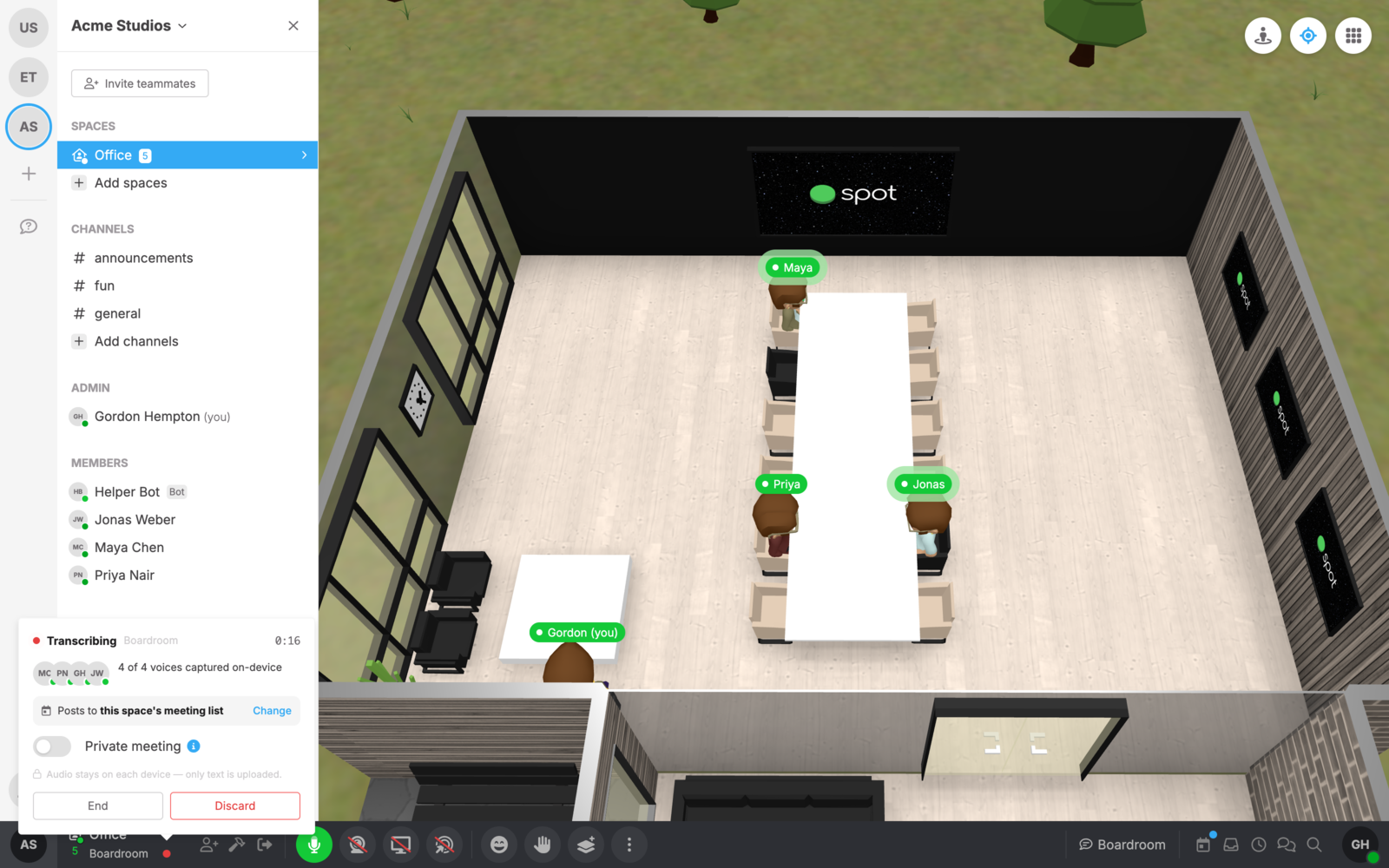
While a transcript is running, a red dot appears next to the room name in the toolbar. Click it to see the live status: who is being captured, where the meeting will be posted, and controls to end the meeting.
Ending, resuming, and discarding
Press End in the status popover to finish the meeting right away, or Stop & discard to end it and delete everything that was captured. If a meeting ends on its own (for example, everyone leaves the room), you have a few minutes to come back and resume it before it's finalized. Meetings also stop automatically when everyone's microphone has been off for a while.
Summaries, action items, and the transcript
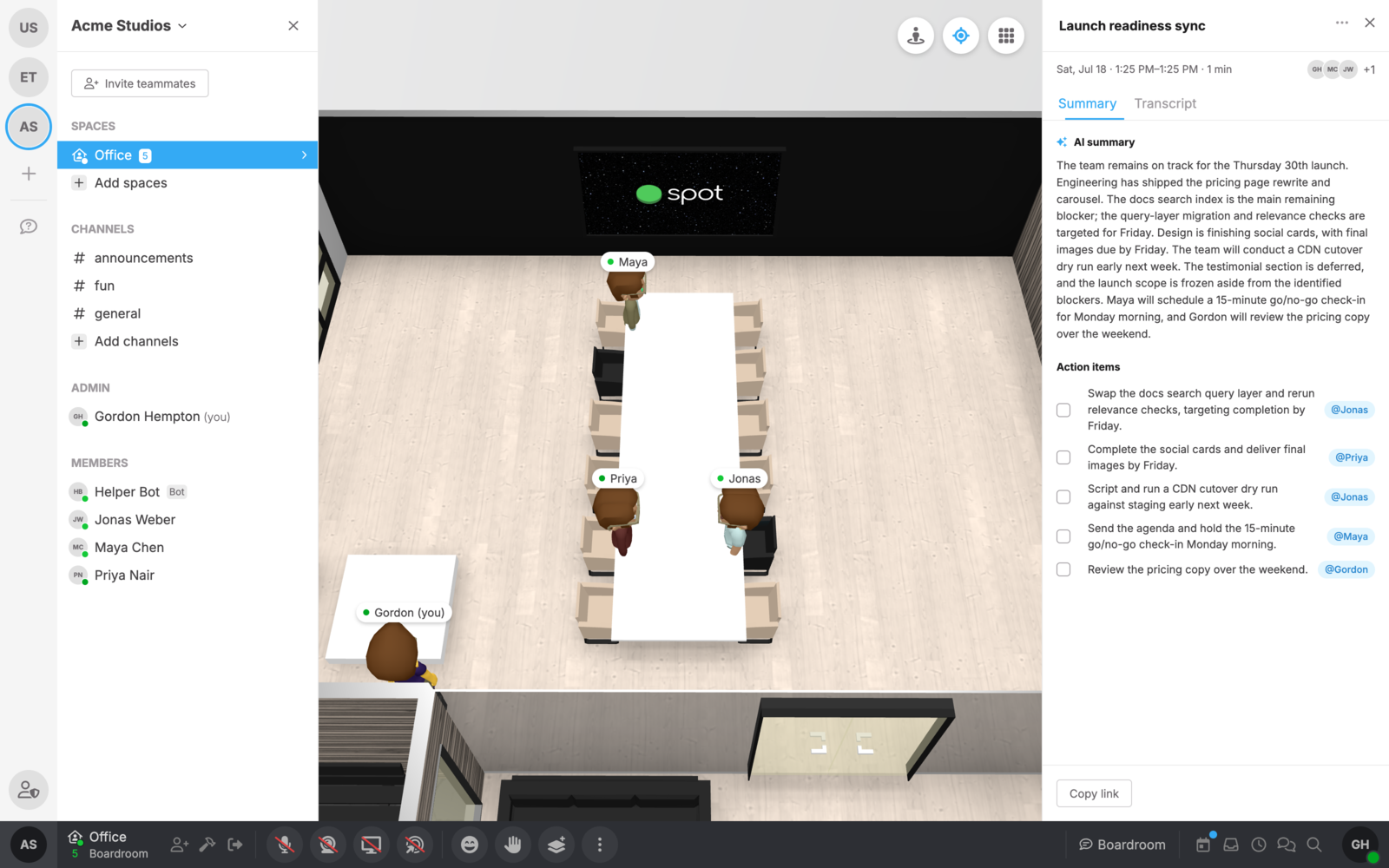
When the meeting is finalized, Spot generates an AI summary and a checklist of action items, each assigned to a teammate. Open any meeting from the Meetings tab of the calendar panel, or share it with a link. Sharing a link does not change who can access the meeting. Action items can be checked off directly in the panel, and the full transcript is searchable and exportable as .txt or .srt.
Team-wide transcription settings
A team admin can open Team Settings → Advanced → Meeting transcription, choose a mode, and save:
| Mode | What it does |
|---|---|
| Off | Stops current transcription and prevents new capture, AI summaries, and transcription prompts across the team. Existing meetings and room settings are preserved. Calls continue normally. |
| Private by default | New meetings are private automatically. Participants and members with Manage all meetings permission can access them. Only members with that permission can make a meeting organization-visible while this mode is selected. |
| Organization-visible by default | New meetings are visible to team members unless they are marked private or start in a locked room. Guests can access only meetings they participated in, unless they have Manage all meetings permission. |
To keep using transcription without sharing new meetings with the whole team, select Private by default. This does not lock rooms or change who can enter them. Anyone who joins a meeting in the room becomes a participant and can access it.
The visibility default applies to new meetings only. Existing meetings keep their visibility, and existing teams keep their current behavior until an admin changes the setting. Switching back to organization-visible defaults does not publish previously private meetings. To clean up older meetings, follow the steps below.
Turning transcription off does not delete saved meetings or reset room settings. When you enable it again, rooms that still have automatic transcription enabled can start transcribing again. Choose Private by default when re-enabling if new meetings should be private.
Private meetings
Private meetings, their transcripts, and their summaries are accessible to participants and members with Manage all meetings permission. Other members cannot find them in Meetings → All or open them through a direct link. Meeting access also requires active membership in the team.
A participant can mark a meeting Private from the live status popover or choose Make private from the meeting's Meeting actions menu. Marking a live meeting private can also lock the room when the person making the change has permission to lock it. Meetings that start in a locked room are private automatically.
Under Private by default, participants cannot make a meeting organization-visible unless they also have Manage all meetings permission. A meeting manager can choose Make organization-visible and confirm that the meeting, transcript, and summary will be shared with the team. Under Organization-visible by default, participants can also change their meetings back to organization-visible.
Private meetings do not post generated recaps to room chat. Making an existing meeting private removes its linked generated recap from room chat while preserving other chat messages and replies. It cannot retract transcript exports or copies someone already saved.
Managing existing meetings
Members with Manage all meetings permission can view, rename, change the visibility of, and delete any meeting in the team, including private meetings they did not attend and meetings whose rooms have been deleted.
- Open Meetings → All in the calendar panel and open the meeting.
- Open Meeting actions (the three-dot menu).
- Choose Make private, or choose Delete meeting for a finished meeting and confirm the deletion.
Participants can also manage their own meetings, subject to the team's restriction on making them organization-visible. Deleting a meeting removes it and its transcript from the app and cannot be undone there. Its linked generated room-chat recap is removed too. This does not remove copies or exports already saved elsewhere.
To let more than one person handle cleanup, grant Manage all meetings to a role assigned to those team members in Team Settings → Roles. This permission grants access to private meeting content, so assign it only to people who should have that access.
Room settings and permissions
Members with Manage room transcription permission configure rooms from Room settings → Transcription:
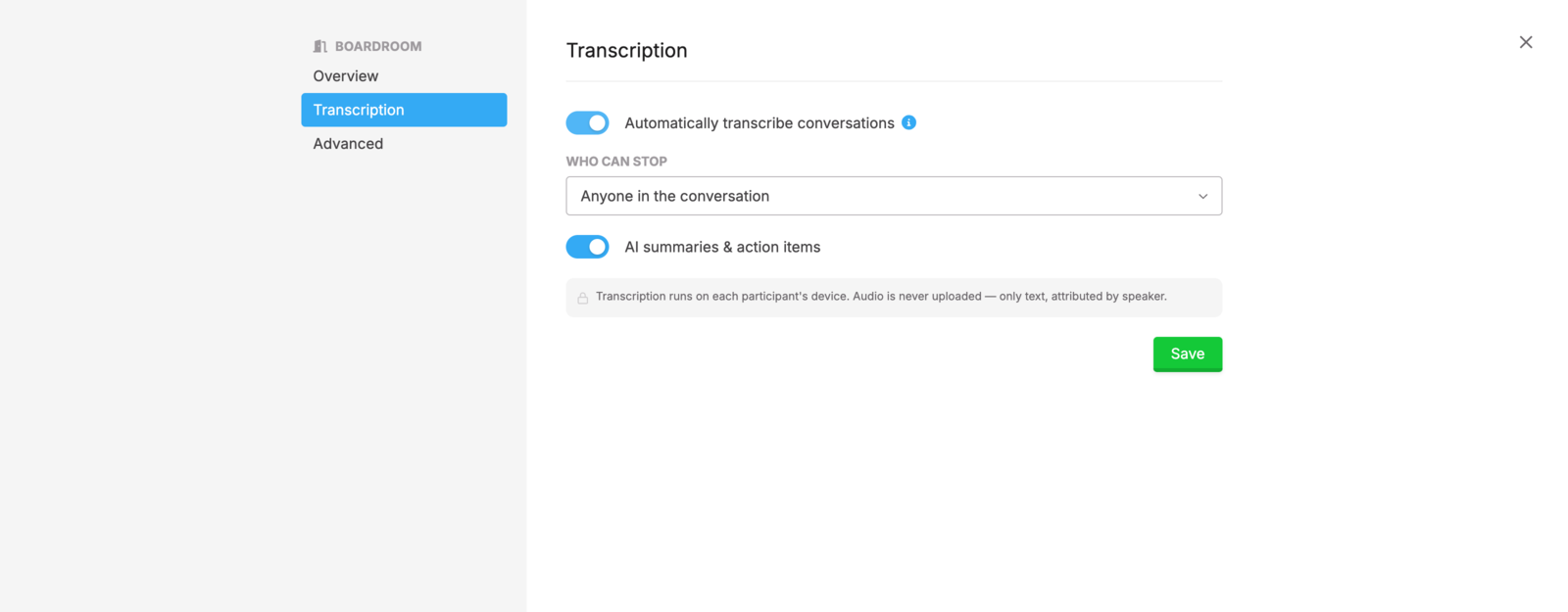
- Automatically transcribe conversations turns auto-transcribe on or off for the room.
- Who can stop controls whether anyone in the conversation or only room admins can stop a transcript. Members with Manage all meetings can also stop it.
- Post recaps to room chat shares a generated recap for an organization-visible meeting when it finishes. Private meetings are excluded.
- AI summaries & action items can be disabled if you want transcripts only.
Manage these permissions in Team Settings → Roles, under Meetings:
- Manage room transcription controls room configuration. It does not grant access to private meetings or permission to publish them.
- Manage all meetings grants access to and management of all meetings, including private meetings the member did not attend. It is separate from room configuration.
Team owners and roles with administrator permissions receive both capabilities. Room moderator status alone does not grant Manage room transcription. Neither permission overrides a team-wide Off setting; a team admin must enable transcription in Team Settings → Advanced first.
See Roles for more about assigning these permissions.
If transcription affects performance
On-device transcription uses some of your device's processing power. If Spot becomes slow, freezes, or has choppy audio while a transcript is running, open Settings → Performance and turn on Disable on-device transcription.
This affects transcription only—your microphone continues to work in the call. Your device stops capturing transcript text from your microphone and stops acting as a scribe for other participants. When another capable participant is present, Spot may assign their device to transcribe instead.
To let your device capture or scribe again, return to Settings → Performance and turn Disable on-device transcription off.