Quick Search
Quick Search helps you find people, spaces, rooms, and conversations, and opens Spot's dedicated message search. The items and actions available depend on your team's permissions.
Open Quick Search
Select the magnifying glass in Spot, or press Cmd + K on Mac or Ctrl + K on Windows. Start typing a person's name or the name of a space, room, or conversation. Choose a result to open it or see the actions available to you.
Find past messages and shared files
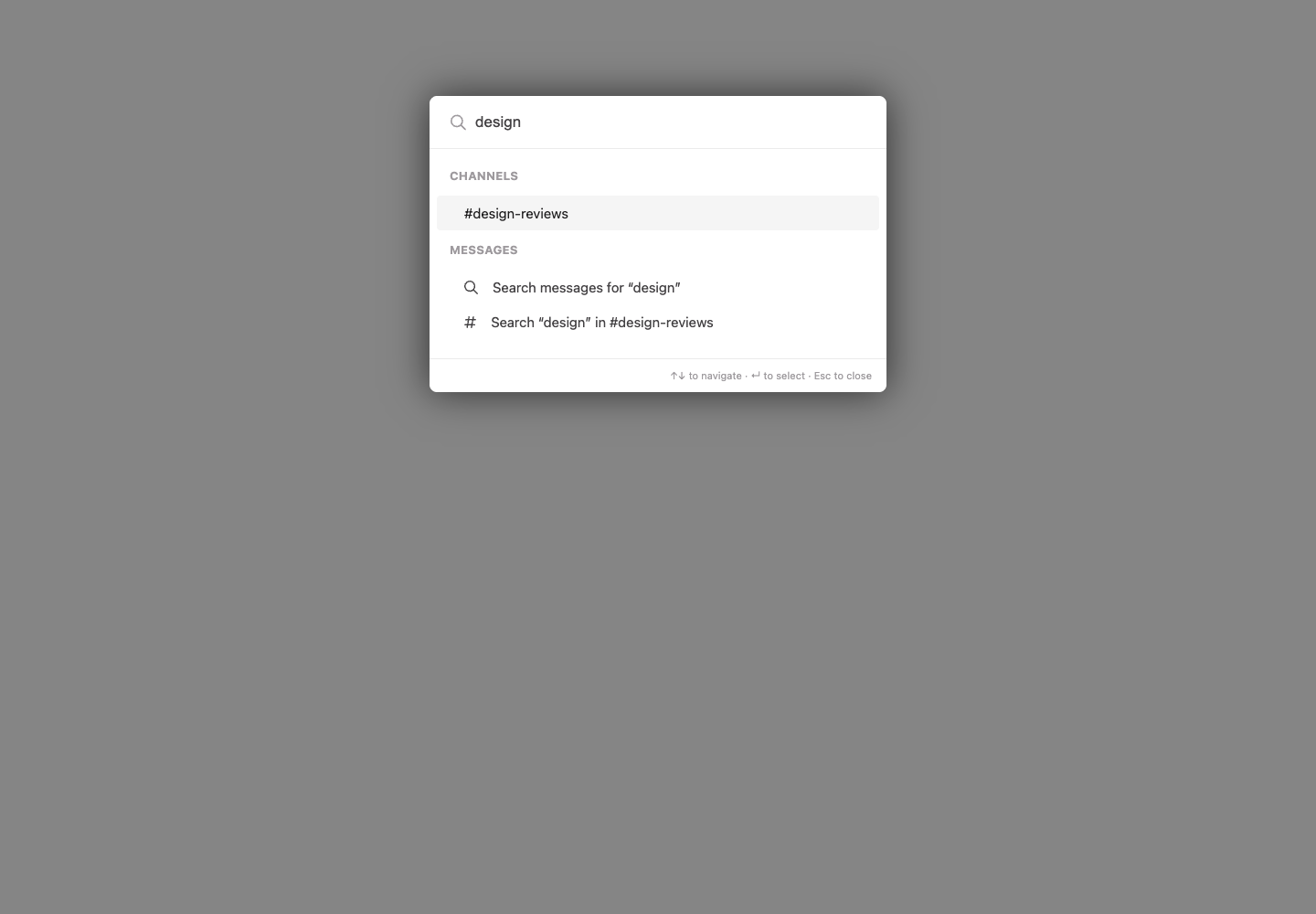
The Messages group contains Search messages for…. When a channel or conversation matches your query, it also offers a message-search action for that conversation. Use the arrow keys and Enter, or tap a row, to open it.
Message search keeps your query and focus as the panel expands. Narrow the results with the team, Conversation, From, Date, and Has file chips, then use Sort beside Results. On mobile, swipe the chip row sideways to reach every filter.
Select a message to preview its conversation. Use Open conversation to continue at that message, or return to the results to keep looking. The top-left back arrow returns to Quick Search with your edited query kept.
See Searching messages for step-by-step instructions, search tips, filters, and mobile screenshots.
Search within a conversation
Already in the right channel, room chat, or direct message? Select Search this conversation in its header to start with that conversation selected. On mobile, tap the magnifying glass in the conversation header, then use the filter chips to narrow the results.